This chapter contains the following topics:
Introduction to Branch Warehouse Items
Entering Branch Warehouse Items
Branch Warehouse Item records hold inventory information about any item stored, sold or made at one or more branch locations that are not the Primary Warehouse for the item.
Use this function to identify Branch Warehouse Items, to establish branch Min/Max control levels and cycle count frequencies, and to review item usage and inventory balances at branch sites.
You may also use other programs to create Branch Warehouse Item records. With the Inventory Transactions function, you may create such a new record by transferring item inventory to a valid branch warehouse for which there was no previous record of that Item Number. You may similarly create a Branch Warehouse Item record in Physical Inventory Processing by entering an item Physical Count transaction for a valid branch location that had no previous record for that item.
Select
Branch warehouse items from the I/M menu.
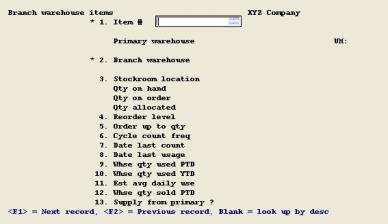
The following screen displays:
Enter the following fields:
*1. Item #
Entry Format: Up to 15 alphanumeric characters.
Validation: Entry must match an Item Number on the Item Master File. The Item Description, Item Primary Warehouse and its description, and the Item Unit of Measure then display from the Item Master.
2. Branch warehouse
Entry Format: Up to 2 alphanumeric characters, or space for Main.
Validation: Entry cannot equal the Primary Warehouse, and if not Main it must match a Warehouse on the Warehouses File. The Warehouse Description is then displayed.
3. Stockroom location
Entry Format: Up to 5 alphanumeric characters, or space.
Comments: Designates a general or specific location, within the Branch Warehouse, where the item is stored.
Qty on hand,
Qty on order,
Qty allocated
Comments: These Branch Warehouse balance fields are only displayed by this program. They are zero filled when you add a record, and cannot be changed with this function. They are updated by other transaction processing programs.
4. Reorder Level,
5. Order up to qty
Entry Format: Up to 7 numeric digits, or zero.
Comments: For items controlled by the Order Point method (Min/Max), these are the Min and Max control levels for the branch location. To control an item by this method, you must enter some initial value in the Reorder Level quantity field; to exclude it from this type of control, enter zero to that field. These values may be periodically recalculated by the Update Item Control Factors function.
6. Cycle count freq
Entry Format: 1 alphanumeric character.
Validation: Entry must be one of the following:
A = Annually
M = Monthly
Q = Quarterly
S = Semi-Annually
Space = N/A (Not applicable)
Comments: Used by the Physical Inventory function to select items for cycle counts.
When you add a record, Fields 7 through 12 are zero filled and bypassed. You may use "Field number to change ?" to modify those zero values.
7. Date last count,
8. Date last usage
Entry Format: 6 numeric digits entered in MMDDYY format, or space.
Comments: Automatically updated by other programs when related item inventory transactions are posted.
9. Whse qty used PTD
10. Whse qty used YTD
Entry Format: Up to 8 numeric digits plus 3 decimals, with optional minus sign, or zero.
11. Est avg daily use
Entry Format: Up to 6 numeric digits plus 3 decimals, or zero.
12. Whse qty sold PTD
Entry Format: Up to 8 numeric digits plus 3 decimals, with optional minus sign, or zero.
13. Supply from primary ?
Entry Format: Y or N. (Default = Y).
Comments: Y means the item inventory is always replenished at the branch by transfers from the Primary Warehouse, and that Purchase or Shop Orders for the item cannot be setup for receiving against such orders at this branch. A N answer allows orders to be entered for the item with this branch designated as the ordering (i.e. receiving) warehouse.
The following fields, updated by other functions in Inventory Management and Customer Order Processing, are protected from change in this program:
7. Date last count
8. Date last usage
9. Whse qty used PTD
10. Whse qty used YTD
12. Whse qty sold PTD
To change these fields by exception, "Allow protected changes ?" must be set to Y in System Information. When the "Change not allowed" message appears for these fields, press the <F2> key and you will be allowed to enter a new value.