This chapter contains the following topics:
This selection enables you to create both COD and shipping labels of your own design. You can specify what order information (fields) to show on the label and the exact arrangement (layout) of that information on the label.
Usually, you would follow these steps in creating a label:
|
Step |
Description |
|
1 |
Use Location grid to print a grid on top of your labels form (or sheet), and sketch the layout of your label on it. |
|
2 |
After you have an idea of what the label will look like, use the Layout selection to first describe its general appearance, and then to select each field and specify where it will print on the label. |
|
3 |
Use Layout list to print a list of your layout specifications. This step will indicate any problems in your layout. |
|
4 |
Next, use Test to try your new label layout. |
|
5 |
After you are satisfied with the label layout, use the Print selection to print your COD/shipping labels for the range of orders that you designate. |
When you want to create another label, if it is similar to an existing one that you have already designed, you can use Copy to copy the existing one to the new label layout. Then use Layout to modify the new (copied) layout, rather than having to create it from scratch.
Select
Layout from the Label formats menu.
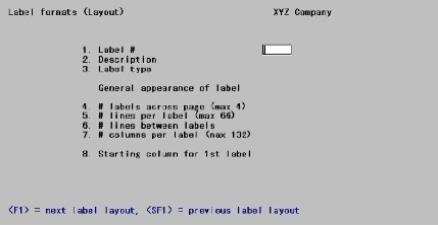
A screen appears similar to this:
On this screen you identify the label layout with a number and description, and define its general appearance.
From this screen you can work with both new and existing label layouts. If a label layout exists for the label number you specify, that label layout appears and is available for changes or deletion.
Enter the following information:
1. Label #
Options
Enter a number to identify this label layout or use one of the options:
|
<F1> |
For next Label layout |
|
<SF1> |
For previous Label layout |
|
Format |
Up to three digits |
|
Example |
Type: 5 |
2. Description
Enter a description for this label layout.
|
Format |
Enter up to 30 characters for description |
|
Example |
Type: Label Test #1 |
3. Label type
Options
Choose the type of label that you are creating by entering one of the following options:
|
C |
For COD label |
|
S |
For Shipping label |
|
Format |
One letter from the table above |
|
Example |
Type: C |
Slightly different information is available for printing on COD labels than shipping labels. For instance, the COD amount field is available for you to select if you indicate that this is a COD label, but is not available if you indicate a shipping label.
General Appearance
The next five fields define the size and appearance of the labels.
4. # of labels across page (max 4)
Enter the number of labels to print across the page (label sheet), up to four labels.
|
Format |
One digit |
|
Example |
Type: 4 |
When this field is entered, fields #9 through #11, appears.
5. # of lines per label (max 66)
This field determines the number of rows contained in each label. The maximum is 66 rows.
|
Format |
Up to two digits |
|
Example |
Type: 21 |
6. # of lines between labels
Determines the number of lines to skipped between labels on a page. For most labels this will be one line.
|
Format |
Up to two digits |
|
Example |
Type: 1 |
7. # of columns per label (max 132)
This field is used to set the number of columns assigned to each label. There are 132 columns available.
|
Format |
Up to three digits |
|
Example |
Type: 33 |
8. Starting column for 1st label
|
Format |
Up to three digits |
|
Example |
Type: 1 |
Enter the starting column number for the first label. This column number will determine how far from the left the printing will start on your label sheet.
9. Starting column for 2nd label
This field appears if you selected to have at least two labels.
Enter the starting column for the second label. This column number must be at least the number of columns in the first label, plus one (field number 7 above).
|
Format |
Up to three digits |
|
Example |
Type: 34 |
10. Starting column for 3rd label
This field appears if you selected to have at least three labels.
The entry in this field is the first column of the third label will be located. This column number defaults to the starting column for the second label, plus the number of columns per label. The default is the minimum value that can be entered in this field, which in the example is 67.
|
Format |
Up to three digits |
|
Example |
Press <Enter> to accept the default |
11. Starting column for 4th label
This field appears if you selected to have at least four labels.
The first column number of the fourth label is entered in this field. This column number defaults to the starting column for the third label, plus the number of columns per label. The default is the minimum value that can be entered in this field, which in the example is 100.
|
Format |
Up to three digits |
|
Example |
Press <Enter> to accept the default |
Options
At the prompt, Field number to change ?, you can make changes by selecting a field and entering the corrected data, or use one of the options
|
<F1> |
For next Label layout |
|
<SF1> |
For previous Label layout |
|
<F3> |
To delete the Label layout |
At the bottom of this screen is a window showing the first 10 fields available for use in your label.
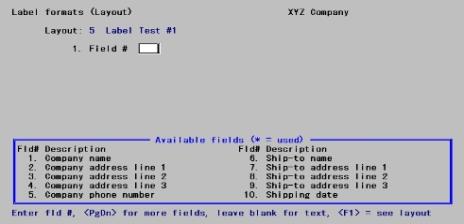
The Available fields window, at the bottom of the screen, lists up to 10 fields, of the available 35 fields, that can be defined. Only the fields displayed in the list can be selected. Fields previously defined are annotated with an asterisk (*).
Options
To display additional available fields, use the following options:
|
<PgUp> |
Displays the previous ten fields in the window. This option is not available when first ten fields are displayed. |
|
<PgDn> |
Displays the next ten fields in the window. This option is not available when the last field is displayed. |
The additional three windows appears as follows:
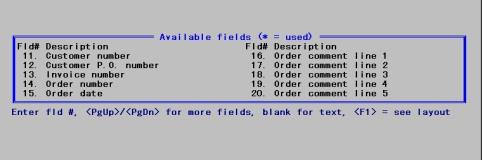
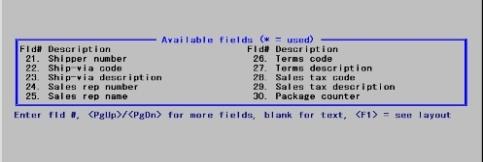
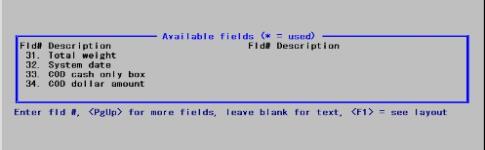
will print a count of the modules on each label. For example, on a COD order for which you entered 3 for # COD labels during Orders (Enter), 1 of 3 would print on the first label, 2 of 3 on the second, and 3 of 3 on the third.
will print your computer system’s current date.
and
appear only if you are laying out a COD label.
prints an X in the location that you designate for any COD order that you have indicated as Cash only during order entry.
Once you have entered a value in field # 1, additional fields appear to allow you to specify where to print the selected field and how you want it to look when it is printed.
The appearance of this screen below Row and Column depends on what type of field you have selected. There are three different types of fields, depending on the type of information contained:
Alphanumeric fields may contain any combination of letters, digits, and special symbols.
Numeric fields only contain digits, along with any decimal points, minus signs or parentheses (for negative numbers), and commas.
Date fields only contain dates.
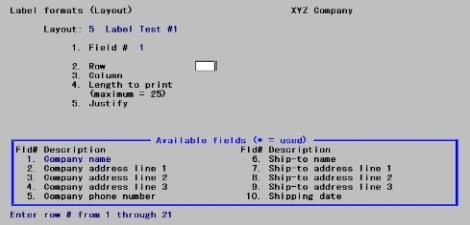
If you select an alphanumeric field, such as 1. Company name, the screen would appear similar to this:
|
Note |
The field number you select must be visible in the Available fields window. If it is not visible, press <PgUp> or <PgDn> until the correct window appears. |
All alphanumeric fields allow the same set of choices, as shown on the above screen. The maximum size of the field depends on the particular field you have selected.
Enter the information for an alphanumeric field as follows:
2. Row
Specify the row in which to print this field.
|
Format |
Up to two digits |
|
Example |
Type: 10 |
3. Column
Specify the starting column in which to print this field.
|
Format |
Up to three digits |
|
Example |
Type: 5 |
4. Length to print (maximum = 25)
Enter the number of characters you want to print in this field, up to <Enter> for the maximum length of the field allowed by the software.
|
Format |
Up to two digits |
|
Example |
Press <Enter> to accept (maximum=25) |
5. Justify
Justify means to adjust characters within the space allowed.
Enter <L> to left-justify the characters. The characters will be aligned with the left-hand margin of the space for this field.
Enter <R> to right-justify the characters. The characters will be aligned with the right-hand margin of the space for this field.
Enter N for no justification. The characters will be printed exactly as entered.
|
<L> |
left-justify |
|
<R> |
right-justify |
|
N |
no justification |
|
Format |
One letter, either L, R, or N. The default is L. |
|
Example |
Press <Enter> to accept the default. |
When you press <Enter> at Field number to change ?, you are returned to Field # for selection of another field.
The choices for a numeric field depend on the characteristics of that particular field (for example, its maximum length, if negative numbers are allowed, if it has any decimal places, etc.).
If you select a numeric field, such as 34. COD dollar amount, the screen appears similar to this:
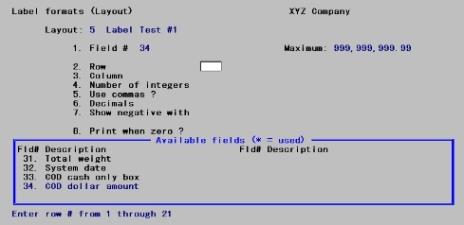
The COD dollar amount field can have 2 decimals and it can contain commas, so the screen appears as above.
After specifying the row and column, enter the remaining information for a numeric field as follows:
4. Number of integers
Enter the number of integers (digits to the left of the decimal point) you want to print in this field, up to the maximum shown, or use the press <Enter> for the maximum shown on the screen.
|
Format |
One digit |
|
Example |
Press <Enter> to accept the default |
5. Use commas ?
(If commas are not appropriate for a particular field, you are not given the option of using commas.)
Answer Y to use commas when printing this field on a label.
|
Format |
One letter, either Y or N |
|
Example |
Type: Y |
6. Decimals
If the field has no decimal places, this choice does not appear.
Enter the number of decimal places you want to print, up to the maximum shown, or use press <enter> for the maximum shown on the screen.
|
Format |
One digit |
|
Example |
Press <Enter> to accept the default. |
7. Show negative with
(If this field cannot contain a negative value, this choice displays Not applicable.)
Enter M to show negative numbers with a minus sign, or enter P to show them in parentheses.
|
M |
To show numbers with a minus sign |
|
P |
To show them in parentheses |
|
Format |
One letter, either M or P. |
|
Example |
Type: M |
8. Print when zero ?
Answer Y to print a zero when the number is zero. Answer N to leave the field blank when the number is zero.
|
Format |
One letter. either Y or N. |
|
Example |
Type: Y |
Date Fields
If you select a date field, such as 32. System date, and complete the remaining information, the screen appears similar to this:
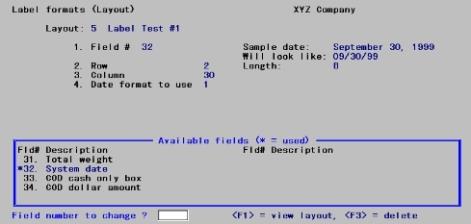
Enter the row and column in the same way as for an alphanumeric field.
Then specify the format to use when printing the date:
4. Date format to use
Enter one of these choices for how the date is to be printed:
|
<1> |
MM/DD/YY |
|
<2> |
MM/DD |
|
<3> |
DD-MMM-YY |
|
<4> |
DD-MMM |
|
<5> |
Month fully spelled |
|
Format |
One digit from the table above |
|
Example |
Type: 1 |
When you enter your choice, the Will look like: field on the right side of the screen shows how the date will look. The length of the field displays so you will know how much room this field will occupy on the label.
Press <Enter> at Field number to change ? to return to Field #.
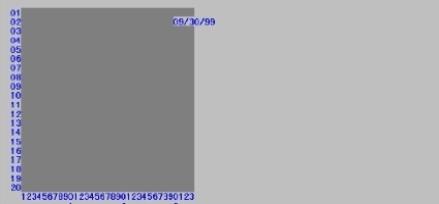
While entering the label format, press <F1> to see a picture of the label. This gives you an idea of the appearance of your label.
The width of the label is your entry for # columns per label, and the number of lines is your entry for # lines per label.
X’s appear to represent the alphanumeric fields that you selected, in the length and location you specified. 9’s appear for numeric fields. Dates are represented differently, depending on the format you have chosen for the date. ?’s appear where any of the fields overlap, in which case you need to change the position of a field.
Options
While viewing a label, you have these options:
|
<Up arrow> <Down arrow> |
To scroll your label up and down one row at a time. This is useful to bring a row to the bottom of the screen to be near the column numbers, where you can more easily judge a field’s column position. |
|
<PgUp> <PgDn> |
To shift your view of the label up and down by a screen full at a time. This is useful when your label size is larger than can be displayed on the screen. |
|
<F2> |
To shift your view to the right edge of the label. This option only appears when your label is wider than the screen. Press <F2> again to shift back to the left. |
|
<Esc> |
To exit the view label screen and return to the layout screen. |
To insert text, press <Enter> at Field #.
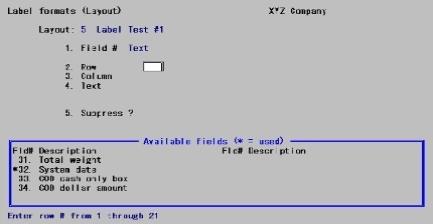
You can enter text and position it where you want it to print on each label. For instance, you might want to print the text Invoice # next to the Invoice number field on each label. You can also use this option to print dashed lines (---------------) or symbols on your labels.
Enter text information as follows:
1. Field #
Text appears in this field, to indicate that you are working with text rather than fields.
|
Format |
Up to two digits |
|
Example |
Type: 1 |
2. Row
Enter the row in which you want the text to print(1 through 35).
|
Format |
Up to two digits |
|
Example |
Type: 1 |
3. Column
Enter the column in which you want the text to begin printing.
A ruler appears, with numbers starting at the column you specified above, and extending up to 40 columns. The ruler stops at the right-hand edge of your label, and thus may be shorter than 40 columns.
In the example above, the ruler starts at column 15, as specified, and extends for 40 columns to column 54, the right-hand edge of your label.)
|
Format |
Up to three digits |
|
Example |
Type: 1 |
4. Text
|
Format |
Up to 40 letters |
|
Example |
Type: Sample Label Text |
Enter the exact text you want to appear in that location.
5. Suppress ?
Answer Y if you want the text to be suppressed (not printed) when some field (to be specified next) is zero or blank. Answer N if you want the text to always print.
For example, suppose you had specified that the text P.O.-# would be printed next to the Customer P.O. number field value on your label. To prevent the P.O.-# text from printing for orders that have no P.O.#, you would answer Y here.
|
Y |
To suppress printing |
|
N |
To Print always |
|
Format |
One letter either Y or N the default is Y |
|
Example |
Press <Enter> to accept the default |
Field #
If you answered Y to Suppress ?, enter the number of the field that, when zero or blank, will cause the text not to print.
If you have not already selected this field to print on the label, you get a warning message. However, your choice is still accepted. Make a note to select the field later. The field you select here must also be selected to print on the label.
Changing or Deleting Text
To delete a text entry, or change the location or wording of text you have entered, display the text screen by pressing <Enter> at Field #.
A screen similar to this appears:
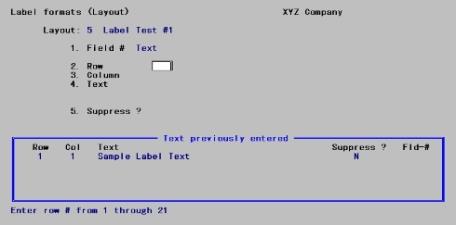
To delete a text entry, enter its row and column number, then press <F3> when prompted to do so.
To change the wording of the text, enter its row and column number, select field number 4, and enter the new wording. You can also change the Suppress ? information by selecting field # 5 and entering a new answer or new field number.
To change the row or column in which the text starts, enter its current row and column numbers. Then select field # 2 or 3 and enter the new row or column number.
You may need to change the appearance or print location of a field that you have already selected to appear on your label. This section describes how to change a field’s appearance or location, delete it, or print it in additional locations on the label.
Select the field you want to modify by entering its number at Field #. The following displays:
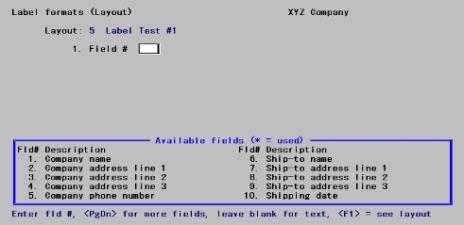
The Field usage window shows how many times you have used this particular field in your label and where you have used it. You can use each field up to four times. In this example, Company name has only been used one time in row 1, column 1.
Select the usage of the field you wish to modify by entering its row in Row, and its column number in Column.
Use Field number to change ? to change any of the information about this field.
Options
You may also use on of the options:
|
<F1> |
To view the label (as described earlier in this chapter) |
|
<F3> |
To delete this particular usage of the field (any other usages will not be affected) |
After making changes, press <Enter> at Field number to change? and you are returned to Field #, ready to select another field.
The Location grid function produces a print out that shows the column and row grid locations on your label. This print out as a design aid for your labels. Mark the positions of your fields and text on the grid and use it as a guide when subsequently entering the label layout.
Select
Location grid from the Label formats menu.
The following screen appears:
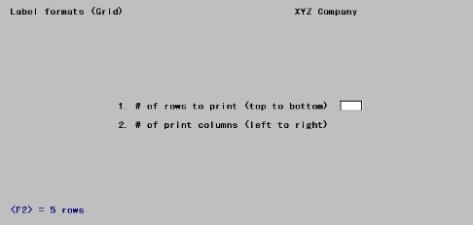
The screen displays two fields: the # of rows to print (top to bottom) field, and the # of print columns (left to right) field.
1. # of rows to print (top to bottom)
Enter the number of rows you want on the grid, or press <F2> to allow five rows for each label.
|
Format |
Up to two digits |
|
Example |
Press <F2> to accept the default. |
2. # of print columns (left to right)
Enter the number of columns you want on the grid, or press <F2> to allow 35 columns for each label.
|
Format |
Up to three digits |
|
Example |
Press <F2> to accept the default |
After entering the number of rows and columns you want, press <Enter> and the following screen appears:
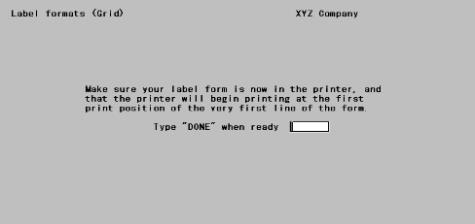
If printing on a laser printer, you are first asked to enter the top and left margins of the label page. Refer to the Starting PBS, Menus and Printing chapter of the System User documentation, if necessary.
The Layout List option allows you to print a report listing of one or more layouts. From this listing, you can determine the general appearance of the label, as well as the appearance and location of each field.
Once you have entered all of the layout information for the label, you can print this report to display the layout specifications. Based on the report, you can make adjustments and corrections as needed.
See the Label Layout Edit List example in the Sample Reports appendix.
Select
Label layouts from the Reports menu.
When the Layout list screen appears, you will be able to select the range of label numbers as well as type of labels you want listed.
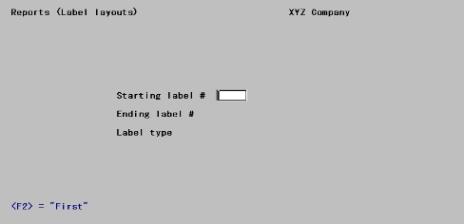
Starting label # and
Ending label #
Enter the number of the label you want to start printing the layout list, and end printing the layout list, respectively. or press <F2> to print from the First to the Last label.
|
Format |
Up to three digits |
|
Example |
Press <F2>, at field #1 and field #2 |
Label type
Options
Use the following options to select the type label you want to list:
|
<C> |
Selects COD labels. |
|
<5> |
Selects shipping labels. |
|
<F5> |
Select both COD and shipping labels. |
|
Format |
One letter, either C or S. |
|
Format |
Type: C |
After entering data in the Label type field, the Any change ? prompt appears. Enter Y if there are any changes to be made, or N if there are no changes. N is the default.
|
Example |
Press <Enter>. |
This selection enables you to print a sample label. For instance, if you have selected the Company name field to appear in row 1 at column 1, and to print at its full length of 25 characters, the test label will have 25 X’s printed on row 1, starting at column 1.
Select
Test from the Label formats menu.
At the Label to test field, enter the number of the label to be test printed or select or select <F1> for the next label format.
|
Format |
Up to three digits |
|
Example |
Press <F1>. |
The label’s number, description, and type, appear in the Label to test field.
Options
At the Right format ? prompt, choose from the options:
|
<F2> |
To select the next label for testing |
|
N |
To reject the label and enter the correct label number |
|
Y |
To select the displayed label (the default) |
|
Example |
Press <F2>. |
The Copy selection enables you to copy an established label layout to a new one.
This may be useful when a new layout is only slightly different from an existing one. After copying the layout, tailor the new layout as desired by adding, modifying, or deleting fields and text.
You may also use this selection to back up an existing layout for security, prior to making extensive changes.
Select
Copy from the Label formats menu.
Enter the following information when the next screen appears:
1. Copy from layout #
At this field, enter the number of the layout you wish to copy or press <F2> to select the next layout.
|
Format |
Up to three digits |
After entering the label to be copied, the Right Format ? prompt appears.
Options
Select one of the following options:
|
Y |
Select this if this is the correct label (the default) |
|
N |
Reject the selection, and enter the correct label number |
|
<F1> |
For next label |
|
<SF1> |
For previous label |
2. Copy to layout #
Enter the number to assign to the new layout.
|
Format |
Up to three digits |
When the blank line appears next to the label number you just entered, enter a description for the label.
|
Format |
Up to 30 characters |
A message informs you that processing is occurring, and the layout is copied.