This chapter contains the following topic:
Printing Magnetic Media Reports
Use this selection to obtain a printed copy of the magnetic media report file produced with the Quarterly reports (mag media) or the Annual reports (mag media) selections.
You can also use this selection to obtain a printed copy of the Federal W-2 electronic report or the electronic 1099-MISC report. For year-end W-2 and 1099-MISC reporting see Year-End Payroll.
Select Magnetic media report list from the Reports, general menu.
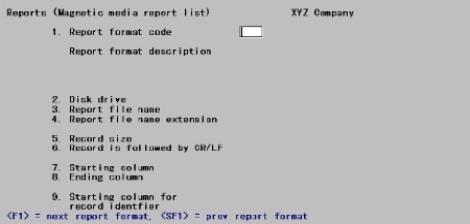
The following screen displays:
Enter information as follows.
1. Report format code
Options
Enter the format code for the report you want to make. The report must previously have been entered and verified in Magnetic media formats. It can be either an annual or a quarterly format. You can use one of the options:
|
<F1> |
For the next report format on file |
|
<SF1> |
For the previous report format |
|
<Enter> |
To print the Federal W-2 electronic report or electronic 1099-MISC report |
Upon entry or selection of a valid format, its description displays alongside its code.
|
Format |
Two characters followed by 15 characters. The first two characters typically represent a state abbreviation. |
|
Example |
(No example is given as magnetic media format will not be entered until a later chapter in this manual) |
2. Disk drive
Enter the disk drive where the input file is located. No path is specified. The file is assumed to be on the current directory of the disk drive specified.
|
Format |
One letter |
|
Example |
(No example is given) |
3. Report file name and
4. Report file name extension
If you entered a report format code in Field #1, the report file name and extension are displayed automatically from the general appearance record of the report format. You can change these if desired (from Field number to change ?).
Otherwise, enter the file name and extension:
The Federal W-2 electronic report is W2REPORT. There is no extension.
The 1099-MISC electronic report is IRSTAX. There is no extension.
For year end W2 and 1099-MISC reporting see Year-End Payroll.
|
Format |
Eight characters for the file name 3 characters for the extension |
|
Example |
(No example is given) |
5. Record size
If you entered a report format code in Field #1, this field is displayed for you and cannot be changed. If you did not enter a report format code, enter the record size for the report file. (The record size for the Federal W-2 electronic report is 128, and for the electronic 1099-MISC report it is 420.)
|
Format |
999 |
|
Example |
(No example is given) |
|
Note |
Do not include carriage return and line feed characters at the end of each record as part of the record size. |
6. Record is followed by CR/LF
If you entered a report format code in Field #1, this field is displayed for you and cannot be changed. If you did not enter a report format code, answer Y if the report file has carriage return and line feed characters after each record. Answer N if it doesn’t.
|
Note |
Neither the Federal W-2 electronic report nor the electronic 1099-MISC report have carriage return and line feed characters after their records. |
|
Format |
One letter, either Y or N |
|
Example |
(No example is given) |
7. Starting column and
8. Ending column
If you entered a report format code in Field #1, these fields display as Not applicable and cannot be changed.
Options
Otherwise, enter the range of columns within the record which you want to print on the report. Column here refers to ordinal position within the record layout. For instance, if the record length is 207 characters you might find it convenient to print one report showing only positions 1-102, and a second report showing positions 103-207. You can use the option:
|
<F2> |
For the First (at Field #7) or Last (at Field #8) column |
The number of columns defined by these two fields cannot exceed 128 (whether you enter the columns explicitly or by using the option key). If you violate this rule, truncation will occur.
|
Format |
999 |
|
Example |
(No example is given) |
9. Starting column for record identifier
Usually, each record in an electronic report has a record identifier, one to three characters long, that is used by the recipient of the report to process it. In order to show this identifier on the Magnetic Media Report List, the program needs to know the location of the record identifier.
Enter the starting column of the record identifier.
|
Format |
999 |
|
Example |
(No example is given) |
# columns
Enter the length of the record identifier.
|
Format |
1, 2, or 3 |
|
Example |
(No example is given) |
Field number to change ?
Make any needed changes. Press <Enter> to print the report. You will be informed if a file with the specified name and extension is not present on the current directory of the specified file.