This chapter contains the following topics:
Printing a Year-End Payroll Report
Run this selection at the end of the year to print the Year-End Payroll Report and handle your W-2, W-3 and 1099 processing.
|
Note |
For those using the separate commission check feature: If you purge Payroll history at the end of the year (or at any time during the year) and if commissions are paid by separate checks other than the regular payroll, be sure not to purge the history for the periods that the commissions are drawn. For example, if you pay commissions on January 15 for commissions earned during October to December, do not purge October to December history until the January 15 payroll in processed. |
For W-2 and W-3 Reporting
| • | Enter additional information, if applicable, for each employee for reporting on W-2 forms or in a formatted W-2 wage file. See Entering W-2 Information. |
| • | Print a list of employee additional information. See Printing W-2 Information. |
| • | Print W-2 forms on preprinted, continuous or laser forms, or output them to a file for submission as a formatted wage file. |
| • | A W-3 form may also be printed. If you prefer to enter it manually the information for the W-3 is provided on the last screen. |
| • | W-2s are provided to your employees and along with a W-3, are sent to the Social Security Administration. |
For 1099-NEC and 1099-MISC forms
| • | If you have the Accounts Payable module and you are using the same EIN there, you should enter your non-employees as vendors in Accounts Payable, enter the Year-end - 1099 MISC information and print your 1099s, along with your other Accounts Payable vendors. Accounts Payable will also print a for 1096 - Annual Summary and Transmittal of U.S. Information Returns. You may also file electronically in Accounts Payable. |
| • | If you do not have Accounts Payable or if that module has a different EIN and you have non-employees you may want to process 1099 reporting in Payroll. Do the following: |
Enter additional information, if applicable, for each non-employee reporting 1099 information.
Print the 1099 Information report for non-employees.
Print 1099-NEC and 1099-MISC forms on preprinted laser forms, or output them to a magnetic E-file.
For paper 1099 forms, fill out form 1096 manually and submit that with your paper 1099 forms to the IRS.
|
Note |
At year-end, you should produce Federal W-2 Wage and Tax Reports, as well as any 1099 Reports, for the year just ended, as soon as possible. The software allows you to continue to process current payroll time transactions and any adjustments until March 31st of the new year. The software does not allow you to process any checks dated later than this, unless you first close the year for payroll. Payroll history and quarterly figures are accumulated for checks processed for the new year dated before March 31st. |
This selection prints the Year-End Payroll Report, that is used to verify the information that is printed on the W-2 forms. You may also run this report to get the year's wage and landholding quarterly and year to date totals by employee.
If an employee has a term insurance premium, the report shows the dollar amount that is added to the employee’s FWT gross, Social Security gross, and Medicare gross when printing W-2 forms.
If the employee has elected to make deductions to both the regular and Roth 401(k), they are accumulated in the one field on the report.
Additional information for W-2 reporting can be entered via the Enter W-2 information menu selection sound under the Year-end menu. This information is not included on this report. Use the Print W-2 information menu selection for that data.
See a Year-end Payroll report example in the Form and Report Examples appendix.
Non-employees and regular employees with no wages for the year will not print on the report. Non-employees should receive a Form 1099 based on the report covered in the Printing 1099 Information section.
Select Year-end payroll from the Reports, General menu.
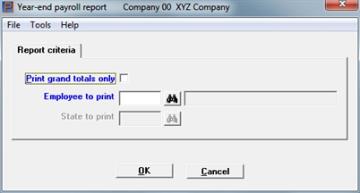
The following screen displays:
Graphical Mode
Character Mode
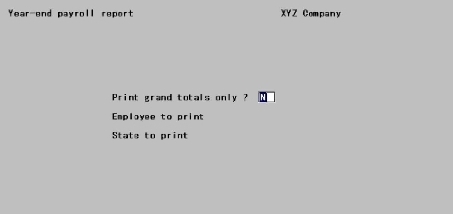
Leave the box unchecked or use the default of N to print a Year-End Payroll Report for "All" or to select only one employee, If "All" employees is selected an accumulation is reported for employee grand totals.
Check this box or enter Y to print only the latter. The Employee to print and State to print fields cannot be entered which means that all employees and states will be included in the grand totals.
|
Format |
Graphical: Check box where checked is yes and unchecked is no. The default is unchecked Character: One letter, either Y or N. The default is N |
|
Example |
Press <Enter> |
This field is automatically selected and set to "All" and cannot be changed if you checked the box or entered Y to the first field.
Options
Otherwise, enter the employee number for this report, or use the option:
|
<F5> |
For "All" employees |
|
Format |
999999 |
|
Example |
Press <F5> |
This field is automatically set:
| • | to "All" if you checked the box or entered Y to the Print grand totals only field. |
| • | to un-enterable if you specified an individual employee in the preceding field. |
In both cases this field is not entered and cannot be changed.
Options
Otherwise, enter the code of the state for which you want to print a report, or use the option:
|
<F5> |
For "All" states |
If the state tax code is not in Tax tables, an error message displays.
|
Format |
Two characters |
|
Example |
Press <F5> |
Select OK to print the report or Cancel to not print and return to the menu.
Character Mode
Any change ?
Answer Y to re-enter the screen, or N to print the report.
The Passport Business Solutions Payroll module automates the majority of your reporting needs as an employer by accumulating wage and tax amounts for each employee as you pay them their weekly, monthly or otherwise payroll checks throughout the year. To enable you to effectively use the payroll system for W-2 reporting, this function allows you to record additional employee information in a temporary file or table so that it is available to the W-2 reporting functions.
Some of the information entered on these screens also print on the W-3 form.
There are several different tax authorities to whom taxes are due and with whom you as an employer are expected to file various reports on a periodic basis.
The primary tax reports you are expected to file are annual wage and tax statements to employees, known more familiarly as W-2s. The PBS Payroll module also allows you to pay non-employee compensation which is generally reportable on form 1099-NEC. Optionally you may also print a 1099-MISC if appropriate.
Although, as described above, much of the information you must report is accumulated for you, the full requirements of W-2 reporting go beyond the scope of the day-to-day operations of the payroll system.
Many of these fields may not be applicable to your situation. In this case just press <Enter> for the field to set it to zero. In fact, after reviewing this screen and the next one, which can be used for state and federal information, if none of the fields are applicable to your reporting needs then you do not need to use this function at all. In this case all the information you are required to report has been accumulated for you within the main body of the PBS Payroll system.
The graphical mode screens are laid out much differently than the character mode screens. Because of this, there is a section for each mode. Graphical mode is first. Use this link for Character Mode.
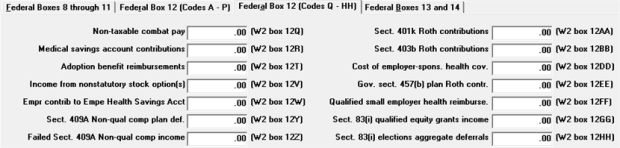
The tabs contains information entry fields that correspond to the W-2 form by box number. Refer to the IRS instructions for filling out W-2 forms for information on each of these fields. The IRS instructions refer to these fields by referencing the W-2 box number. Each field on the screen is followed by the corresponding W-2 box number.
State information is entered on a separate screen.
Select Enter W-2 information from the Year-end menu.
The first screen, without the tabs, is similar to the following:
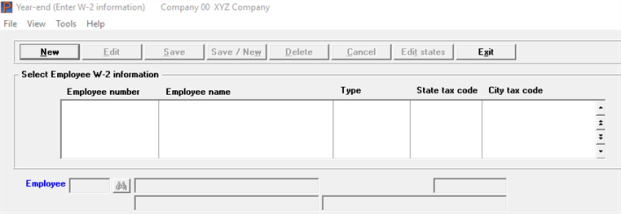
From this screen you can work with both new and existing W-2 information records. If one has already been entered for the employee number you specify, it displays and is available for changes or deletion.
The list box displays up to 6 existing W-2 information entries at a time. You may sort the W-2 information entries by employee number in ascending or descending order. Only columns with red labels may be sorted. To select a field or change the sort order, click on the column name or the arrow to the right of the column name or use the View options.
To locate a W-2 information entry, start typing an employee number. You may also use the up/down arrows, Page up, Page down, Home and End keys to locate an entry. The <F1> and <SF1> keys function the same as the up/down arrow keys.
W-2 information entries that display in the list box are available for changes or deletion. The fields for the selected W-2 information entry display on the tabs.
When an entry is found, you may select the <Enter> key or Edit button to start editing.
You may click on a button or enter the keyboard equivalent for adding, editing, deleting or canceling a W-2 information entry:
| Button | Keyboard | Description |
|---|---|---|
|
New |
Alt+n |
For a new W-2 information entry. |
|
Delete |
Alt+d |
To delete the W-2 information entry selected in the list box. You may also use the <F3> key. |
|
Edit |
Alt+e |
To edit the W-2 information entry selected in the list box. |
|
Save |
Alt+s |
To save a new W-2 information entry or changes to an edited payroll entry. |
|
Save/New |
Alt+w |
Same as Save button plus the New button. |
|
Cancel |
Alt+c |
To cancel adding or editing a W-2 information entry. |
|
Edit states |
Alt+t |
To edit the W-2 state information. See Edit States. |
|
Exit |
Alt+x |
To exit the screen. You may also use the <Esc> key. |
Enter the following information:
For a new W-2 information record
Options
Enter the number of the employee for whom to enter W-2 information or use one of the options:
|
<F1> |
For next employee, in employee number sequence |
|
<SF1> |
For previous employee |
|
Blank |
To look up employees by name |
If you choose to enter by name, the cursor moves to the name field and lets you enter an employee name (or just the leading characters of one). Upper / lower case is significant. Your options at this point become:
|
<F1> |
For next employee, in employee name sequence |
|
<SF1> |
For previous employee |
|
Blank |
To return to looking up employees by number |
The employee entered must exist in Employees and must also have been paid at least one check during the year.
W-2 forms cannot be printed for non-employees. If you enter the number of a non-employee, an error message displays.
|
Format |
999999 |
|
Example |
Type 1 |
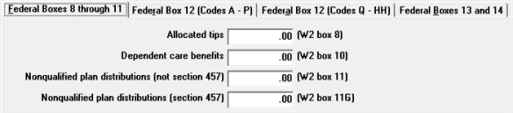
This field is required for tipped employees of certain food and beverage establishments above a certain size. Refer to the appropriate IRS publication for information on calculating this amount for each of your tipped employees. Enter the dollar amount.
|
Format |
999999999.99 |
|
Example |
Press <Enter> |
Dependent care benefits (W-2 box 10)
When you enter a new record for the employee the calculated Dependent Care Benefits amount displays. You may use this field to change the Dependent Care Benefits amount.
The calculated Dependent Care Benefits are entered as earnings/deductions and are posted to the payroll history after printing checks. If needed, enter the dollar amount.
|
Format |
9999999.99 |
|
Example |
Press <Enter> |
Nonqualified plan distributions (not section 457) (W2 box 11)
This field is for reporting distributions from non-qualified plans that are not section 457 plans. Follow the IRS W-2 instructions. Enter the dollar amount.
|
Format |
9999 999.99 |
|
Example |
Press <Enter> |
Nonqualified plan distributions (section 457) (W2 box 11G)
This field is for reporting distributions from non-qualified plans that are section 457 plans. Follow the IRS W-2 instructions. Enter the dollar amount.
|
Format |
9999999.99 |
|
Example |
Press <Enter> |
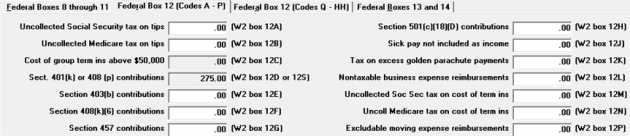
Uncoll social security tax on tips (W2 box 12A)
If you could not collect all the social security tax due on an employee’s tips out of their paychecks, report this amount here. Follow the IRS W-2 instructions. Enter the dollar amount.
|
Format |
9999999.99 |
|
Example |
Press <Enter> |
Uncollected Medicare tax on tips (W2 box 12B)
If you could not collect all the Medicare tax due on an employee’s tips out of their paychecks, report this amount here. Follow the IRS W-2 instructions. Enter the dollar amount.
|
Format |
9999999.99 |
|
Example |
Press <Enter> |
Cost of group term ins above $50,000 (W-2 box 12C)
This field shows the value contained in the employee’s record for the employee W-2 ins premium field. The value displayed here can be changed by editing that field in Employees.
If your state requires that you include the insurance premium to be included with the SWT gross, create an adjustment so that it adds the amount to the employees SWT gross. Then it will be reported on the W-2.
Section 401(k) or 408(p) contributions (W-2 box 12D or 12S)
This field shows the value of elective deferrals for the employee. Elective deferrals are calculated amounts and are posted to payroll history after printing checks. These can be for either a 401(k) or a 408(p) plan, depending on your answer to the question Simple IRA 408(p) plan in Control information.
Section 403(b) contributions (W2 box 12E)
This field is for reporting employee contributions to a deferred compensation plan according to section 403(b) of the IRS code. Follow the IRS W-2 instructions. Enter the dollar amount.
|
Format |
9999999.99 |
|
Example |
Press <Enter> |
Section 408(k)(6) contributions (W2 box 12F)
This field is for reporting employee contributions to a deferred compensation plan according to section 408(k)(6) of the IRS code. Follow the IRS W-2 instructions. Enter the dollar amount.
|
Format |
9999999.99 |
|
Example |
Press <Enter> |
Section 457 contributions (W2 box 12G)
This field is for reporting employee contributions to a deferred compensation plan according to section 457 of the IRS code. Follow the IRS W-2 instructions. Enter the dollar amount.
|
Format |
9999999.99 |
|
Example |
Press <Enter> |
Section 501(c)(18)(d) contributions (W2 box 12H)
This field is for reporting employee contributions to a deferred compensation plan according to section 501(c)(18)(D) of the IRS code. Follow the IRS W-2 instructions. Enter the dollar amount.
|
Format |
9999999.99 |
|
Example |
Press <Enter> |
Sick pay not included as income (W2 box 12J)
When an employee contributes to a sick pay plan and then receives sick pay, such sick pay is not included as income. Report this in this box. Follow the IRS W-2 instructions. Enter the dollar amount.
|
Format |
9999999.99 |
|
Example |
Press <Enter> |
Tax on excess golden parachute payments (W2 box 12K)
This field applies only for employees who have received excess golden parachute payments. Follow the IRS W-2 instructions. Enter the dollar amount.
|
Format |
9999999.99 |
|
Example |
Press <Enter> |
Nontaxable business expense reimbursements (W2 box 12L)
This field applies to employees who receive reimbursement for business expenses. Follow the IRS W-2 instructions. Enter the dollar amount.
|
Format |
9999999.99 |
|
Example |
Press <Enter> |
Uncollected Soc Sec tax on cost of term ins (W2 box 12M)
Use this field to report uncollected Social Security tax on the cost of group-term life insurance coverage, generally above $50,000, which you provided to your former employees, including retirees. Follow the IRS W-2 instructions. Enter the dollar amount.
|
Format |
9999999.99 |
|
Example |
Press <Enter> |
Uncoll Medicare tax on cost of term ins (W2 box 12N)
Use this field to report uncollected Medicare tax on the cost of group-term life insurance coverage, generally above $50,000, that you provided to former employees, including retirees. Follow the IRS W-2 instructions. Enter the dollar amount.
|
Format |
9999999.99 |
|
Example |
Press <Enter> |
Excludable moving expense reimbursements (W2 box 12P)
This field applies to employees who receive moving expenses that are excludable from income. Follow the IRS W-2 instructions. Enter the dollar amount.
|
Format |
9999999.99 |
|
Example |
Press <Enter> |
Non-taxable combat pay (W-2 box 12Q)
Enter the non-taxable combat pay. The amount of your non-taxable combat pay will be shown on the Form W-2, in box 14, with Code Q.
|
Format |
9999999.99 |
|
Example |
Press <Enter> |
Medical savings account contributions (W2 box 12R)
This field applies to employees entitled to exclude income deposited in a medical savings account. Follow the IRS W-2 instructions. Enter the dollar amount.
|
Format |
9999999.99 |
|
Example |
Press <Enter> |
Adoption benefit reimbursements (W2 box 12T)
This field applies to employees entitled to exclude certain adoption expenses from income. Follow the IRS W-2 instructions. Enter the dollar amount.
|
Format |
9999999.99 |
|
Example |
Press <Enter> |
Income from nonstatutory stock option(s) (W2 box 12V)
This field applies to income from exercise of nonstatutory stock options. Follow the IRS W-2 instructions. Enter the dollar amount.
|
Format |
9999999.99 |
|
Example |
Press <Enter> |
Empr contrib to Empe Health Savings Acct (W2 box 12W)
This field applies to the employer contributions made to the employee Health Savings Account. Follow the IRS W-2 instructions. Enter the dollar amount.
|
Format |
9999999.99 |
|
Example |
Press <Enter> |
Sect. 409A Non-qual comp plan def. (W-2 box 12Y)
Enter the non-qualified compensation deferral amount.
|
Format |
9999999.99 |
|
Example |
Press <Enter> |
Failed Sect. 409A Non-qual comp income (W-2 box 12Z)
Enter the income under a nonqualified deferred compensation plan that fails to satisfy section 409A.
|
Format |
9999999.99 |
|
Example |
Press <Enter> |
Sect. 401k Roth contributions (W-2 box 12AA)
Enter the Roth contributions income.
Before editing this field, the amount displays as zero. When checks have been written which include Roth 401(k) deferral amounts, the Quarter-to-Date History stores this information. When you edit this field the deferral amount from the Quarter-to-Date History defaults to the amount in history.
If needed, you may override the default amount by entering a different amount. You may use the 401(k) contributions report, found under Reports, Employee/Employer, to determine the amount of Roth contributions accumulated throughout the year.
Whether you use the default or enter a new amount, whatever is in this field will print on the W-2 form. If you do not enter a W-2 record, the default amount will print on the W-2 regardless.
|
Format |
9999999.99 |
|
Example |
Press <Enter> |
Designated Roth contributions are a type of contribution that can be accepted by new or existing 401(k) or 403(b) plans. This feature is permitted under a Code section added by the Economic Growth and Tax Relief Reconciliation Act of 2001 (EGTRRA), effective for years beginning on or after January 1, 2006. If a plan adopts this feature, employees can designate some or all of their elective contributions as designated Roth contributions, (which are included in gross income) rather than traditional, pre-tax elective contributions. So, starting in 2006, elective contributions come in two types: traditional, pre-tax elective contributions (elective contributions are also referred to as elective deferrals) and designated Roth contributions.
Sect. 403b Roth contributions (W-2 box 12BB)
Enter the Roth contributions salary reduction amount.
|
Format |
9999999.99 |
|
Example |
Press <Enter> |
See above for an explanation of Roth contributions.
Cost of employer-spons. health cov. (W-2 box 12DD)
Enter the cost of the employer sponsored health coverage.
|
Format |
9999999.99 |
|
Example |
Press <Enter> |
Gov. sect. 457(b) plan Roth contr. (W-2 box 12EE)
Enter the amount of the 457(b) plan Roth contributions. An organization that can establish this plan is a state or local government or a tax-exempt organization under IRC 501(c). For more information search on the www.irs.gov web site.
|
Format |
9999999.99 |
|
Example |
Press <Enter> |
Qualified small employer health reimburse. (W-2 box 12FF)
This code reports the total amount of permitted benefits under a qualified small employer health reimbursement arrangement (QSEHRA). These QSEHRAs allow eligible employers to pay or reimburse medical care expenses of eligible employees after the employees provide proof of coverage. The maximum reimbursement for an eligible employee under a QSEHRA is $4,950 ($10,000 if it also provides reimbursements for family members), before indexing for inflation. These amounts are for 2017 and can change yearly. For more information, see the 21st Century Cures Act, Public Law 114–255, Division C, Section 18001. Also, for more information search on the www.irs.gov web site.
|
Format |
9999999.99 |
|
Example |
Press <Enter> |
Sect. 83(i) qualified equity grants income (W-2 box 12GG)
Correct Income from Qualified Equity Grants Under Section 83(i).
|
Format |
9999999.99 |
|
Example |
Press <Enter> |
Sect. 83(i) elections aggregate deferrals (W-2 box 12HH)
Correct Aggregate Deferrals Under Section 83(i) Elections as of the Close of the Calendar Year.
|
Format |
9999999.99 |
|
Example |
Press <Enter> |
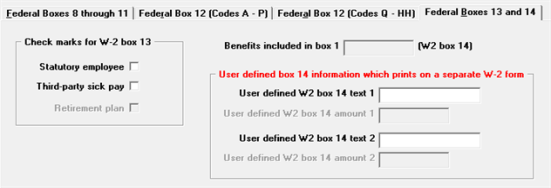
Check marks for W-2 box 13
This lets you set check marks for some of the items in Box 13 of the W-2 form, which contains the following check boxes:
Check this box if there are earnings subject to Social Security tax and medicare tax but not Federal income tax. See IRS publications 15 and 15-A for details about Statutory employees.
Check this box if you are a third-party sick pay payer filing a W-2 for an insured’s employee.
Retirement plan
This field is automatically set for an employee that was an active participant in a retirement plan throughout the year, except nonqualified plans or 457 plans during the year.
|
Note |
Your response to “Third-party sick pay” here only affects the Form W-2 for this employee. Your response here also supersedes your response to "Third-party sick payer” in the Print W-2 and W-3 forms selection and to “Third-party sick payer” in the Magnetic W-2 forms selection. See Printing W-2 and W-3 Forms and Formatted W-2 Wage Efile for additional information. |
Benefits included in box 1 (W-2 box 14)
This field shows the total of benefits provided to the employee that have been reported as part of the box 1 amount for wages, tips, and other compensation. Benefits included in box 1 are entered as earnings / deductions and are posted to the payroll history after printing checks.
User defined box 14 information that prints on a separate W-2 form
Box 14 is available for any amounts that you track manually outside of the payroll system (for instance, charitable contributions or pension plan contributions). If you choose to do this, enter a description here of what amount you are entering. The amount and its description will be printed in box 14 of the W-2 form.
|
Format |
15 characters |
User defined W2 box 14 amount 1
If User defined W2 box 14 text 1 is not entered, the cursor skips this field and it is left blank. Otherwise, enter the amount of whatever you have described in User defined W2 box 14 text 1. You may enter zero.
|
Format |
9999999.99 |
Box 14 is available for any amounts that you track manually outside of the payroll system (for instance, charitable contributions or pension plan contributions). If you choose to do this, enter a description here of what amount you are entering. The amount and its description will be printed in box 14 of the W-2 form.
|
Format |
15 characters |
User defined W2 box 14 amount 2
If User defined W2 box 14 text 2 is not entered, the cursor skips this field and it is left blank. Otherwise, enter the amount of whatever you have described in User defined W2 box 14 text 2. You may enter zero.
|
Format |
9999999.99 |
This screen is viewed by answering Yes to the question, Enter/change state W-2 reporting information ? or clicking on the Edit states button. It allows you to report additional information in box 14 and enter text for the state in box 15 for this employee.
There can be multiple records for an employee — one for each state.
Here is the top of the screen:
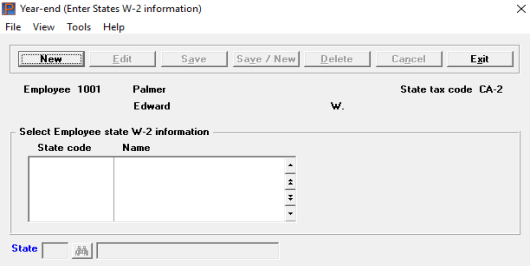
Enter the abbreviation of the state for which you wish to enter additional information. Alternatively, you may click on the binoculars icon to find the state via a lookup or select the <F8> key to also invoke the lookup.
A state can be entered only when there exists quarter-to-date information for that state and that employee. If a state tax table has been assigned to an employee in the Employees selection, but no history has yet accumulated for that state, you will not be able to enter it here.
For all states use the State information tab.
|
Format |
2 characters |
State information tab
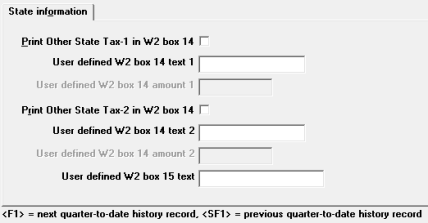
Print State Tax-1 in W2 box 14
Many states impose income tax on employees. This can be reported on the employee's W-2 form. In addition to income tax, some states impose additional taxes or other taxes which sometimes must be reported. If this is the case for the selected employee, checking this box will cause the "other state tax 1" to be printed in box 14 of the W-2 form.
Otherwise, specify whether you want to print the first other state tax in this box.
|
Format |
Check box, checked is yes and unchecked is no. The default is unchecked |
If the Print State Tax-1 in W2 box 14 field is checked, this field cannot be entered.
Otherwise, Box 14 is available for any amounts that you track manually outside of the payroll system (for instance, charitable contributions or pension plan contributions). If you choose to do this, enter a description here of what amount you are entering. The amount and its description will be printed in box 14 of the W-2 form.
|
Format |
15 characters |
User defined W2 box 14 amount 1
If the Print State Tax-1 in W2 box 14 field is checked, this field cannot be entered.
If the User defined W2 box 14 text 1 field is not entered, the cursor skips this field and it is left blank. Otherwise, enter the amount of whatever you have described in User defined W2 box 14 text 1 field. You may enter zero.
|
Format |
9999999.99 |
Print State Tax-2 in W2 box 14
Many states impose income tax on employees. This can be reported on the employee's W-2 form. In addition to income tax, some states impose additional taxes or other taxes which sometimes must be reported. If this is the case for the selected employee, answering Y to this question will cause the "other state tax 2" to be printed in box 14 of the W-2 form.
Otherwise, specify whether you want to print the second other state tax in this box.
|
Format |
Check box where checked is yes and unchecked is no. The default is unchecked |
If the Print State Tax-2 in W2 box 14 field is checked, this field cannot be entered.
Otherwise, the remainder of Box 14 is available for any amounts that you track manually outside of the payroll system (for instance, charitable contributions or pension plan contributions). If you choose to do this, enter a description here of what amount you are entering. The amount and its description will be printed in box 14 of the W-2 form.
It is not necessary that the same information be entered in the same field for each employee. For example, an employee who commutes from out of state might have his other state tax entered in the top portion of Box 14 while his charitable contributions appeared lower down in the same box. An employee who resides in-state would have only a charitable contribution, which you might want to place at the top of Box 14. Alternately, you might wish for the sake of consistency to enter charitable contributions in this field in both cases.
|
Format |
15 characters |
User defined W2 box 14 amount 2
If the Print State Tax-2 in W2 box 14 field is checked, this field cannot be entered.
If the User defined W2 box 14 text 2 field is not entered, the cursor skips this field and it is left blank. Otherwise, enter the amount of whatever you have described in the User defined W2 box 14 text 2 field. You can enter zero.
|
Format |
9999999.99 |
This field is optional. It is provided so that you can enter text on the second line in box 15 of the W-2 form. This field prints on the second line of box 15 along with the calculated state tax wages, tips, etc. The first line of box 15 contains the accumulated state information with amounts and when used, the accumulated local tax information with amounts.
In previous PBS versions, for the state of New Jersey for printing three OSTs, the solution was to enter three sets of texts that print in box 20 and with corresponding amounts that print in box 19 on the W-2. This function has been reverted back to the way the system originally worked. It is now recommended that the available OST fields in the state tax tables be used for two New Jersey OSTs. For tracking the third OST enter a city tax code. The two OSTs will print in box 14 while the city tax (OST) will print in box 19 and 20.
The first screen contains information entry fields that correspond to the W-2 form by box number. Refer to the IRS instructions for filling out W-2 forms for information on each of these fields. The IRS instructions refer to these fields by referencing the W-2 box number. Each field on the screen is followed by the corresponding W-2 box number.
The second allows you to report amounts for both state and federal box 14 and states text for box 15 for of the W-2 form. This box is provided for anything additional you want to report that is not covered elsewhere on the form.
A typical use for this would be the reporting of an additional state tax that your employees are required to pay but which may vary from state to state. In many cases there is no such tax and so you would not have to report anything in box 14.
Additional Federal information can be entered in 2 ways. One as the user defined fields as part of state information or two as additional Federal information that prints on a separate W-2.
If you need to run this function, start as follows:
Select Enter W-2 information from the Year-end menu.
The first screen similar to the following appears:
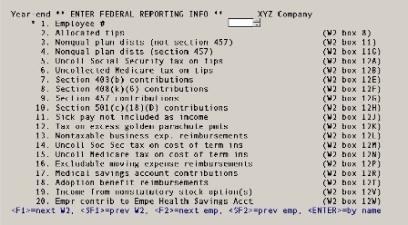
From this screen you can work with both new and existing W-2 information records. If one has already been entered for the employee number you specify, it displays and is available for changes or deletion.
Enter the following information:
* 1. Employee #
For a new W-2 information record
Options
Enter the number of the employee for whom to enter W-2 information or use one of the options:
|
<F2> |
For next employee, in employee number sequence |
|
<SF2> |
For previous employee |
|
Blank |
To look up employees by name |
If you choose to enter by name, the cursor moves to the name field and lets you enter an employee name (or just the leading characters of one). Upper / lower case is significant. Your options at this point become:
|
<F2> |
For next employee, in employee name sequence |
|
<SF2> |
For previous employee |
|
Blank |
To return to looking up employees by number |
The employee entered must exist in Employees and must also have been paid at least one check during the year.
W-2 forms cannot be printed for non-employees. If you enter the number of a non-employee, an error message displays.
For an existing W-2 information record
Options
Enter the employee number whose W-2 information you want to change or delete, or use the option:
|
<F1> |
For next entry |
|
<SF1> |
For previous entry |
|
Format |
999999 |
|
Example |
Type 1 |
2. Allocated tips (W2 box 8)
This field is required for tipped employees of certain food and beverage establishments above a certain size. Refer to the appropriate IRS publication for information on calculating this amount for each of your tipped employees.
Options
Enter the dollar amount or use the option:
|
<F2> |
To set this field and all remaining fields to zero |
|
Format |
999999999.99 |
|
Example |
Press <Enter> |
3. Nonqual plan dists (not section 457) (W2 box 11)
This field is for reporting distributions from non-qualified plans that are not section 457 plans. Follow the IRS W-2 instructions.
Options
Enter the dollar amount or use the option:
|
<F2> |
To set this field and all remaining fields to zero |
|
Format |
9999 999.99 |
|
Example |
Press <Enter> |
4. Nonqual plan dists (section 457) (W2 box 11G)
This field is for reporting distributions from non-qualified plans that are section 457 plans. Follow the IRS W-2 instructions.
Options
Enter the dollar amount or use the option:
|
<F2> |
To set this field and all remaining fields to zero |
|
Format |
9999999.99 |
|
Example |
Press <Enter> |
5. Uncoll social security tax on tips (W2 box 12A)
If you could not collect all the social security tax due on an employee’s tips out of their paychecks, report this amount here. Follow the IRS W-2 instructions.
Options
Enter the dollar amount or use the option:
|
<F2> |
To set this field and all remaining fields to zero |
|
Format |
9999999.99 |
|
Example |
Press <Enter> |
6. Uncollected Medicare tax on tips (W2 box 12B)
If you could not collect all the Medicare tax due on an employee’s tips out of their paychecks, report this amount here. Follow the IRS W-2 instructions.
Options
Enter the dollar amount or use the option:
|
<F2> |
To set this field and all remaining fields to zero |
|
Format |
9999999.99 |
|
Example |
Press <Enter> |
7. Section 403(b) contributions (W2 box 12E)
This field is for reporting employee contributions to a deferred compensation plan according to section 403(b) of the IRS code. Follow the IRS W-2 instructions.
Options
Enter the dollar amount or use the option:
|
<F2> |
To set this field and all remaining fields to zero |
|
Format |
9999999.99 |
|
Example |
Press <Enter> |
8. Section 408(k)(6) contributions (W2 box 12F)
This field is for reporting employee contributions to a deferred compensation plan according to section 408(k)(6) of the IRS code. Follow the IRS W-2 instructions.
Options
Enter the dollar amount or use the option:
|
<F2> |
To set this field and all remaining fields to zero |
|
Format |
9999999.99 |
|
Example |
Press <Enter> |
9. Section 457 contributions (W2 box 12G)
This field is for reporting employee contributions to a deferred compensation plan according to section 457 of the IRS code. Follow the IRS W-2 instructions.
Options
Enter the dollar amount or use the option:
|
<F2> |
To set this field and all remaining fields to zero |
|
Format |
9999999.99 |
|
Example |
Press <Enter> |
10. Section 501(c)(18)(d) contributions (W2 box 12H)
This field is for reporting employee contributions to a deferred compensation plan according to section 501(c)(18)(D) of the IRS code. Follow the IRS W-2 instructions.
Options
Enter the dollar amount or use the option:
|
<F2> |
To set this field and all remaining fields to zero |
|
Format |
9999999.99 |
|
Example |
Press <Enter> |
11. Sick pay not included as income (W2 box 12J)
When an employee contributes to a sick pay plan and then receives sick pay, such sick pay is not included as income. Report this in this box. Follow the IRS W-2 instructions.
Options
Enter the dollar amount or use the option:
|
<F2> |
To set this field and all remaining fields to zero |
|
Format |
9999999.99 |
|
Example |
Press <Enter> |
12. Tax on excess Golden Parachute Pmts (W2 box 12K)
This field applies only for employees who have received excess golden parachute payments. Follow the IRS W-2 instructions.
Options
Enter the dollar amount or use the option:
|
<F2> |
To set this field and all remaining fields to zero |
|
Format |
9999999.99 |
|
Example |
Press <Enter> |
13. Nontaxable business exp. reimbursements (W2 box 12L)
This field applies to employees who receive reimbursement for business expenses. Follow the IRS W-2 instructions.
Options
Enter the dollar amount or use the option:
|
<F2> |
To set this field and all remaining fields to zero |
|
Format |
9999999.99 |
|
Example |
Press <Enter> |
14. Uncoll Soc Sec tax on cost of term ins (W2 box 12M)
Use this field to report uncollected Social Security tax on the cost of group-term life insurance coverage, generally above $50,000, which you provided to your former employees, including retirees. Follow the IRS W-2 instructions.
Options
Enter the dollar amount or use the option:
|
<F2> |
To set this field and all remaining fields to zero |
|
Format |
9999999.99 |
|
Example |
Press <Enter> |
15. Uncoll Medicare tax on cost of term ins (W2 box 12N)
Use this field to report uncollected Medicare tax on the cost of group-term life insurance coverage, generally above $50,000, that you provided to former employees, including retirees. Follow the IRS W-2 instructions.
Options
Enter the dollar amount or use the option:
|
<F2> |
To set this field and all remaining fields to zero |
|
Format |
9999999.99 |
|
Example |
Press <Enter> |
16. Excludable moving expense reimbursements (W2 box 12P)
This field applies to employees who receive moving expenses that are excludable from income. Follow the IRS W-2 instructions.
Options
Enter the dollar amount or use the option:
|
<F2> |
To set this field and all remaining fields to zero |
|
Format |
9999999.99 |
|
Example |
Press <Enter> |
17. Medical Savings account contributions (W2 box 12R)
Options
This field applies to employees entitled to exclude income deposited in a medical savings account. Follow the IRS W-2 instructions. Enter the dollar amount or use the option:
|
<F2> |
To set this field and all remaining fields to zero |
|
Format |
9999999.99 |
|
Example |
Press <Enter> |
18. Adoption benefit reimbursements (W2 box 12T)
Options
This field applies to employees entitled to exclude certain adoption expenses from income. Follow the IRS W-2 instructions. Enter the dollar amount or use the option:
|
<F2> |
To set this field and all remaining fields to zero |
|
Format |
9999999.99 |
|
Example |
Press <Enter> |
19. Income from nonstatutory stock option(s) (W2 box 12V)
This field applies to income from exercise of nonstatutory stock options. Follow the IRS W-2 instructions. Enter the dollar amount or use the option:
|
Format |
9999999.99 |
|
Example |
Press <Enter> |
20. Empr contrib to Empe Health Savings Acct (W2 box 12W)
This field applies to the employer contributions made to the employee Health Savings Account. Follow the IRS W-2 instructions. Enter the dollar amount or use the option:
|
Format |
9999999.99 |
|
Example |
Press <Enter> |
Field number to change ?
If this is a new entry, the Check Marks for W-2 box 13 window (described in the next section) displays at this point. Only after you have entered this window are you positioned at Field number to change ?.
If this is an existing entry, you are positioned at Field number to change ? first, and can view the window if desired.
Options
In both cases, make any needed changes, or use one of the options:
|
<F1> |
For the next W-2 entry |
|
<SF1> |
For the previous W-2 entry |
|
<F3> |
To delete this entry |
|
<F6> |
To view W-2 box 13 |
|
<F7> |
To enter W-2 box 10, box 12Q, 12Y and AA through EE. Also to view computed box 12 C, 12D, and box 14 |
|
<Enter> and Y |
To enter/change state box 14, state box 15 text and Federal return box 14. |
The <F1>, <SF1>, and <F6> options are available only if this is an existing entry.
The <F6> and <F7> options are discussed in separate sections below. They cause a window to appear for viewing and changing additional information about this entry.
Press <Enter>. You are asked:
Enter/change state W-2 and Fed box 14 reporting information ?
If you need to report additional state information in box 14 and text in box 15 of the W-2 form for this employee, answer Y. Also select Y to add additional box 14 Federal information. To terminate this entry and proceed to another employee, answer N. See State and Federal User-Defined Reporting
These fields display automatically after entering a new employee year-end record. When changing information they can be viewed by pressing <F6>. This lets you set check marks for some of the items in Box 13 of the W-2 form, which contains the following check boxes:
|
Statutory employee |
Enter Y if there are earnings subject to Social Security tax and medicare tax but not Federal income tax. See IRS publications 15 and 15-A for details about Statutory employees. |
|
Third-party sick pay |
Y if you are a third-party sick pay payer filing a W-2 for an insured’s employee. |
|
Retirement plan |
This field is display-only and cannot be changed here. It is automatically set for an employee that was an active participant in a retirement plan throughout the year, except nonqualified plans or 457 plans during the year. |
All of these items are initially set to N, meaning do not check the box. To check a box, move the highlight to the box item by pressing <Up> or <Down> and then pressing <F1>. To remove a check, press <F1> again on that box item.
|
Note |
Your response to “Third-party sick pay” here only affects the Form W-2 for this employee. Your response here also supersedes your response to “8. Third-party sick payer ?” in the Print W-2 and W-3 forms selection and to “13. Third-party sick payer ?” in the Magnetic W-2 forms selection. See Printing W-2 and W-3 Forms and Formatted W-2 Wage Efile for additional information. |
When you are done setting the optional items, press <Esc> to clear the window.
These fields can be accessed by pressing <F7>.
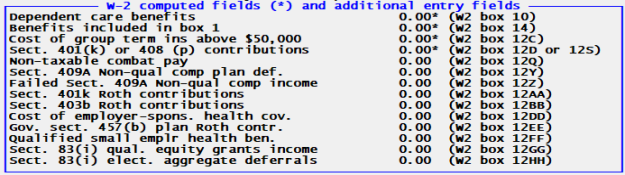
Several of the fields must be entered manually while the others are computed fields for your information only. The computed fields have asterisks to the right of the amounts.
To access and enter the additional dependent care benefits select <F7>.
To enter W-2 box 10, box 12Q, 12Y and AA through HH fields select <SF7>.
|
<F7> |
To enter additional Dependent Care Benefits |
|
<SF7> |
To enter amounts for Boxes Q, Y, Z, AA, BB, DD, EE, FF, GG and HH |
|
<Esc> |
Exit window |
Dependent care benefits (W-2 box 10)
Box 10 is made up of two fields. The first field is accessed by entering <F7> and it allows you add additional Dependent Care Benefits to the computed amount. The computed amount field shows amounts paid for dependent care for an employee above a certain limit and this field cannot be changed. Dependent care benefits are entered as earnings/deductions and are posted to the payroll history after printing checks.
|
Format |
9999999.99 |
|
Example |
Press <Enter> |
Any change ?
Select Y to re-enter the amount or N to accept the amount entered.
Benefits included in box 1 (W-2 box 14)
This field shows the total of benefits provided to the employee that have been reported as part of the box 1 amount for wages, tips, and other compensation. Benefits included in box 1 are entered as earnings/deductions and are posted to the payroll history after printing checks.
Cost of group term ins above $50,000 (W-2 box 12C)
This field shows the value contained in the employee’s record for the employee W-2 ins premium field. The value displayed here can be changed by editing that field in Employees.
If your state requires that you include the insurance premium to be included with the SWT gross, create an adjustment so that it adds the amount to the employees SWT gross. Then it will be reported on the W-2.
Section 401(k) or 408(p) contributions (W-2 box 12D or 12S)
This field shows the value of elective deferrals for the employee. Elective deferrals are calculated amounts and are posted to payroll history after printing checks. These can be for either a 401(k) or a 408(p) plan, depending on your answer to the question Simple IRA 408(p) plan in Control information.
Non-taxable combat pay (W-2 box 12Q)
Enter the non-taxable combat pay. The amount of your non-taxable combat pay will be shown on the Form W-2, in box 14, with Code Q.
|
Format |
9999999.99 |
|
Example |
Press <Enter> |
Sect. 409A Non-qual comp plan deferral (W-2 box 12Y)
Enter the non-qualified compensation deferral amount.
|
Format |
9999999.99 |
|
Example |
Press <Enter> |
Failed Sect. 409A Non-qual comp income (W-2 box 12Z)
Enter the income under a nonqualified deferred compensation plan that fails to satisfy section 409A.
|
Format |
9999999.99 |
|
Example |
Press <Enter> |
Sect. 401k Roth contributions (W-2 box 12AA)
Enter the Roth contributions income.
When entering a new record, the default amount from history displays. As checks are written which include Roth 401(k) deferral amounts, the Quarter-to-Date History stores this information.
If needed, you may override the default amount by entering a different amount. You may use the 401(k) contributions report, found under Reports, Employee/Employer, to determine the amount of Roth contributions accumulated throughout the year.
Whether you use the default or enter a new amount, whatever is in this field will print on the W-2 form. If you do not enter a W-2 record, the default amount will print on the W-2 regardless.
|
Format |
9999999.99 |
|
Example |
Press <Enter> |
Designated Roth contributions are a type of contribution that can be accepted by new or existing 401(k) or 403(b) plans. This feature is permitted under a Code section added by the Economic Growth and Tax Relief Reconciliation Act of 2001 (EGTRRA), effective for years beginning on or after January 1, 2006. If a plan adopts this feature, employees can designate some or all of their elective contributions as designated Roth contributions, (which are included in gross income) rather than traditional, pre-tax elective contributions. So, starting in 2006, elective contributions come in two types: traditional, pre-tax elective contributions (elective contributions are also referred to as elective deferrals) and designated Roth contributions.
Sect. 403b Roth contributions (W-2 box 12BB)
Enter the 403b Roth contributions salary reduction amount.
|
Format |
9999999.99 |
|
Example |
Press <Enter> |
See above for an explanation of Roth contributions.
Cost of employer-spons. health cov. (W-2 box 12DD)
Enter the cost of the employer sponsored health coverage.
|
Format |
9999999.99 |
|
Example |
Press <Enter> |
Gov. sect. 457(b) plan Roth contr. (W-2 box 12EE)
Enter the amount of the 457(b) plan Roth contributions. An organization that can establish this plan is a state or local government or a tax-exempt organization under IRC 501(c). For more information search on the www.irs.gov web site.
|
Format |
9999999.99 |
|
Example |
Press <Enter> |
Qualified small emplr health ben. (W-2 box 12FF)
This code reports the total amount of permitted benefits under a qualified small employer health reimbursement arrangement (QSEHRA). These QSEHRAs allow eligible employers to pay or reimburse medical care expenses of eligible employees after the employees provide proof of coverage. The maximum reimbursement for an eligible employee under a QSEHRA is $4,950 ($10,000 if it also provides reimbursements for family members), before indexing for inflation. These amounts are for 2017 and can change yearly. For more information, see the 21st Century Cures Act, Public Law 114–255, Division C, Section 18001. Also, for more information search on the www.irs.gov web site.
Sect. 83(i) qual. equity (W-2 box 12FF) (W-2 box 12GG)
Correct Income from Qualified Equity Grants Under Section 83(i).
|
Format |
9999999.99 |
|
Example |
Press <Enter> |
Sect. 83(i) elect. aggregate deferrals (W-2 box 12HH)
Correct Aggregate Deferrals Under Section 83(i) Elections as of the Close of the Calendar Year.
|
Format |
9999999.99 |
|
Example |
Press <Enter> |
Any change ?
Select Y to re-enter the amount or N to accept the amount entered.
This screen is viewed by answering Y to the question, Enter / change state W-2 and Fed box 14 reporting information ?. It allows you to report additional information in box 14 and enter text for the state in box 15 for this employee.
|
Note |
Entering State and Federal Data When you specify a state code in field 1, the data you enter in user-defined text fields 3 & 6 and amount 4 & 7 can be used for ANY box 14 reporting - even data for Federal reporting. You should use these fields before entering additional box 14 Federal information. Also keep in mind that when you leave field one blank to enter additional Federal information, that an another W-2 prints in which many fields are blank. The additional Federal information you enter and what is printed is intended primarily as information for the employee. |
There can be multiple records for an employee — one for each state and one for federal information. The following screen displays:
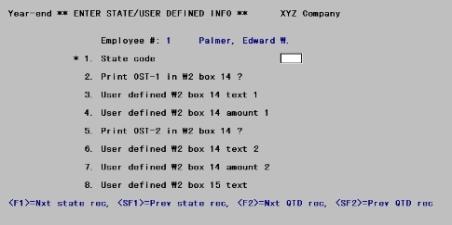
From this screen you can work with both new and existing entries.
1. State code
Enter the abbreviation of the state for which you wish to enter additional information.
A state can be entered only when there exists quarter-to-date information for that state and that employee. If a state tax table has been assigned to an employee in the Employees selection, but no history has yet accumulated for that state, you will not be able to enter it here.
Options
You may also use one of the options:
|
<F1> |
For the next existing entry (federal or state) for this employee |
|
<SF1> |
For the previous existing entry for this employee |
|
<F2> |
For the next state for which QTD information exists for this employee (whether or not this corresponds to an existing entry for this employee in this selection) |
|
<SF2> |
For the previous state for which there is QTD information |
|
<Enter> |
For additional federal information. Note that when data is entered this way, an additional W-2 will print. |
|
Format |
Two characters |
2. Print OST-1 in W2 box 14 ?
If Field #1 is blank, this field displays as Not applicable because what you are entering is Federal information.
Many states impose income tax on employees. This can be reported on the employee's W-2 form. In addition to income tax, some states impose additional taxes or other taxes which sometimes must be reported. If this is the case for the selected employee, answering Y to this question will cause the "other state tax 1" to be printed in box 14 of the W-2 form.
Otherwise, specify whether you want to print the first other state tax in this box.
|
Format |
One letter, either Y or N |
3. User defined W2 box 14 text 1
If Field #2 is Y, this field displays as Not applicable.
Otherwise, Box 14 is available for any amounts that you track manually outside of the payroll system (for instance, charitable contributions or pension plan contributions). If you choose to do this, enter a description here of what amount you are entering. The amount and its description will be printed in box 14 of the W-2 form.
|
Format |
15 characters |
4. User defined W2 box 14 amount 1
If Field #2 is Y, this field displays as Not applicable.
If Field #3 is not entered, the cursor skips this field and it is left blank. Otherwise, enter the amount of whatever you have described in Field #3. You may enter zero.
|
Format |
9999999.99 |
5. Print OST-2 in W2 box 14 ?
If Field #1 is blank, this field displays as Not applicable because what you are entering is Federal information.
Many states impose income tax on employees. This can be reported on the employee's W-2 form. In addition to income tax, some states impose additional taxes or other taxes which sometimes must be reported. If this is the case for the selected employee, answering Y to this question will cause the "other state tax 2" to be printed in box 14 of the W-2 form.
Otherwise, specify whether you want to print the second other state tax in this box.
|
Format |
One letter, either Y or N |
6. User defined W2 box 14 text 2
If Field #5 is Y, this field displays as Not applicable.
Otherwise, the remainder of Box 14 is available for any amounts that you track manually outside of the payroll system (for instance, charitable contributions or pension plan contributions). If you choose to do this, enter a description here of what amount you are entering. The amount and its description will be printed in box 14 of the W-2 form.
It is not necessary that the same information be entered in the same field for each employee. For example, an employee who commutes from out of state might have his other state tax entered in the top portion of Box 14 while his charitable contributions appeared lower down in the same box. An employee who resides in-state would have only a charitable contribution, which you might want to place at the top of Box 14. Alternately, you might wish for the sake of consistency to enter charitable contributions in Field #6 in both cases.
|
Format |
15 characters |
7. User defined W2 box 14 amount 2
If Field #2 is Y, this field displays as Not applicable.
If Field #6 is not entered, the cursor skips this field and it is left blank. Otherwise, enter the amount of whatever you have described in Field #6. You can enter zero.
|
Format |
9999999.99 |
8. User defined W2 box 15 text
If Field #1 is blank, this field displays as Not applicable because what you are entering is Federal information.
This field is optional. It is provided so that you can enter text on the second line in box 15 of the W-2 form. This field prints on the second line of box 15 along with the calculated state tax wages, tips, etc. The first line of box 15 contains the accumulated state information with amounts and when used, the accumulated local tax information with amounts.
|
Note |
New Jersey requires the state employer registration number on New Jersey W-2. This number can be entered in this field. |
Options
Except for the first entry of the session, you can also use the option:
|
<F2> |
For the same text as the previous entry |
|
Format |
18 characters |
Field number to change ?
Options
Make any needed changes. Press <Enter> to process another new or existing entry for this employee. For an existing entry, you can also use one of the options:
|
<F1> |
For the next existing entry (federal or state) for this employee |
|
<SF1> |
For the previous existing entry for this employee |
|
<F3> |
To delete this entry |
In previous PBS versions, for the state of New Jersey and printing three OSTs, the solutions was to enter three sets of texts to print in box 20 and with corresponding amounts that print in box 19 on the W-2. This function has been reverted back to the way the system originally worked. It is now recommended that the available OST fields in the state tax tables be used for two New Jersey OSTs. For tracking the third OST enter a city tax code. The two OSTs will print in box 14 while the city tax (OST) will print in box 19 and 20.
This selection prints the information you entered in Enter W-2 information.
This report does not print all the employee's year-end W-2 information and it may not print all the employees that have accumulated data for reporting. For more employee year-end payroll information you may also run the Year-end payroll report found under the Reports, General menu selection. You may also print W-2s to plain paper to see what will be reported.
Select Print W-2 information from the Year-end menu.
The following screen displays:
Graphical Mode
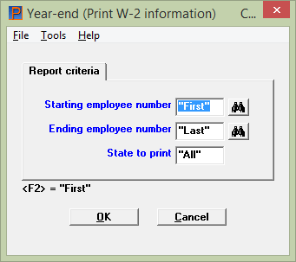
Character Mode
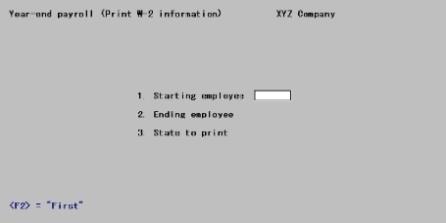
Ending employee number
Options
Enter the range of employee numbers for whom to print W-2 form information, or use the option:
|
<F2> |
For the "First" (at Starting employee number ) or "Last" (at Ending employee number) |
|
Format |
999999 at each field |
Options
Enter the code for the state to print, or use one of the options:
|
<F5> |
To print information for All states |
|
Blank |
For none (i.e., to print federal information with no state information) |
|
Format |
Two characters |
If you checked the box in Control information to the fieldSimple IRA 408(p) plan :
| • | In W-2s Box 12, a code S (for SIMPLE plan) will display before the total, instead of D for 401(k). |
Select OK to display a printer selector window or cancel to return to the menu without printing.
Using character mode you may do the following:
Field number to change ?
Make any needed changes. Press <Enter> to print the report.
This selection prints W-2 and W-3 physical forms.
For producing W-2s data in a formatted W-2 wage file (magnetic media), refer to the Formatted W-2 Wage Efile section.
If you inputted additional information for each employee it is recommended that you run and review Print W-2 information, described in Printing W-2 Information, before proceeding. You may also want to print and review the Year-end payroll report. See Printing a Year-End Payroll Report.
Make sure the Maximum Social Security wages and other amounts are set for the tax year that you are printing W-2s. This is done in the tax tables. See Tax Tables. When finished printing set the amounts to the next tax year.
|
Note |
Refer to the Name and Address Field Notes in the Employees chapter for information on entering employee names and addresses. |
Many laser printers by default are set to 66 lines. The program should automatically set the printer to 60 lines, however if it does not you must set it yourself by changing the printer settings.
When printing W2s and a W3, you must use a PCL 5 compliant laser printer as set up in Company information, rather than a Windows printer. When printing W2s to a dot matrix printer it also must be PCL 5 compliant. PCL 5 compliant printers are required for long name and addresses to print compressed.
When printing a W-3:
| • | Select a range of employees that includes all the employees that are illegible for a W-2. If you leave any employees out of the W-3 printing their amounts will not be part of the W-3 totals. |
| • | A W-3 can print the Employer's contact person, Employer's telephone number, Employer's fax number and Employer's email address as entered in the Jurisdictions 'RA' record. Enter that information before you proceed. For instructions see Jurisdictions. |
| • | If you have employees from more than one state, Box 15 will print an X. |
If Pennsylvania's Act 32 applies to your company, see the W-2 Forms Printing section of the Pennsylvania Act-32 appendix.
Data Errors
The Social Security Administration will reject a printed W-2 if any of the following data conditions exist:
| • | Medicare wages and tips are less than the sum of social security wages and social security tips |
| • | Social security tax is greater than zero; social security wages and social security tips are equal to zero |
| • | Medicare tax is greater than zero; Medicare wages and tips are equal to zero |
The W-2 printing program checks to see if any of the above conditions exist. If it finds any of these conditions for an employee, that employee is reported on a W-2 Exception Report. This enables you to enter and post an adjustment to handle any Medicare and social security incorrect data conditions.
The program will only print W-2s for employees who do not have an incorrect data condition . You may also print a W-3 even if one or more of your employees have incorrect data. However, the program will not add any employee's that have incorrect amounts into the W-3 totals. You must first enter and post an adjustment to correct the data. Then you can print the employee's W-2 and print a W-3 that includes totals for all reportable employees.
Select Print W-2/W3 forms from the Year-end menu.
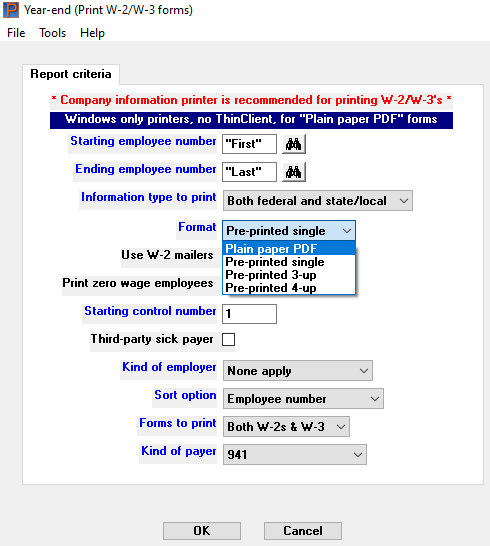
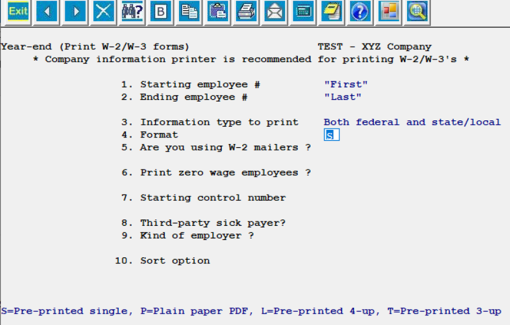
The following screen displays:
Graphical Mode
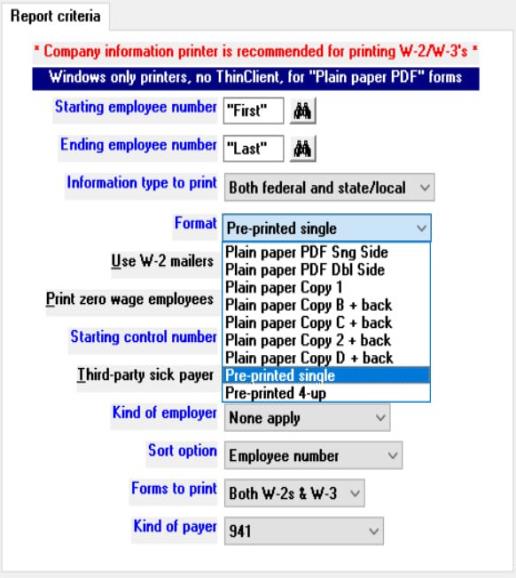
Character Mode
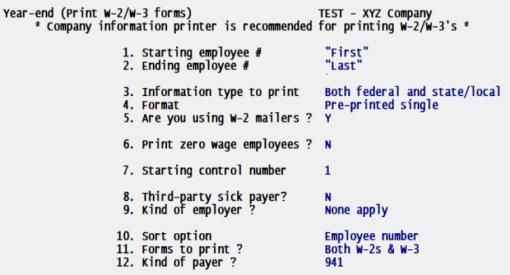
Ending employee number
Options
Enter the range of employee numbers for whom to print W-2 forms, or use the option:
|
<F2> |
For the First (at Starting employee number) or Last (at Ending employee number) |
|
Format |
999999 at each field |
In order to print the total amounts on a W-3 all the employees must be selected in the above range.
Options
The IRS has designed the W-2 form so that you can report both Federal and state & local information at the same time. In order to offer maximum flexibility, this function allows you to choose which type of information to print on your W-2 forms:
|
F |
Federal only |
|
S |
State/local only |
|
B |
Both federal and state/local |
If you have employees who work in more than one state during the year, the accumulated totals for these employees are stored by state in Quarter-to-date History by employee number. When W-2s are printed, the federal totals are summed and printed on one W-2 form while the state amounts are printed one-state-to-a-form. You have these options:
| • | You can choose to print only federal totals, in which case no state information prints. You can then print state information in a second run. |
| • | If all your employees worked only in one state for the year, print both federal and state information. |
| • | When you select to print State and local information the Federal information will not print on a W-3 or on the totals screen. |
|
Format |
Graphical mode: Drop down list. The default is Both federal and state/local Character mode: One letter from the list above. There is no default. |
This field allows you to indicate the format of the W-2 forms you are printing.
Options
Character/Graphical/Description table enhanced with the following descriptions for two new options - Plain Paper PDF and Pre-printed 3-up.
|
Note: if you choose either of the plain paper pdf options, those forms will be automatically emailed to any employees already set up to receive payroll advices. See Appendix J Pay Advice for more information. |
Enter one of the character or graphical mode options below:
|
Character |
Graphical |
Description |
|---|---|---|
|
P |
Plain paper PDF Sng Side |
To print plain paper single sided copies to a Windows printer. Note that Copy A is for Federal paper filing and may only be on a red pre-printed form. |
|
5 |
Plain paper PDF Dbl Side |
To print plain paper double sided copies to a Windows printer. Note that Copy A is for Federal paper filing and may only be on a red pre-printed form. |
|
1 |
Plain paper Copy 1 |
To print plain paper Copy 1 |
|
B |
Plain paper Copy B + back |
To print plain paper Copy B + back Prints plain paper PDF Copy B only, which includes documentation on the back side. |
|
C |
Plain paper Copy C + back |
To print plain paper Copy C + back Prints plain paper PDF Copy C only, which includes documentation on the back side. |
|
2 |
Plain paper Copy 2 + back |
To print plain paper Copy 2 + back Prints plain paper PDF Copy 2 only, which includes documentation on the back side. |
|
D |
Plain paper Copy D + back |
To print plain paper Copy D + back Prints plain paper PDF Copy D only, which includes documentation on the back side. |
|
S
|
Pre-printed single
|
To print on single-width W-2 forms. The single-width can be used for single laser W-2 forms. It prints 2 W-2s per page. the employee's address can print either a compressed (small) or non-compressed font (large): The non-compressed font prints for short names and addresses. When the names and addresses are a longer length, the font prints in compressed mode to allow the longer data to fit on the form. The name and address fields print compressed when any of the following occur: – The employee’s first name with a middle initial is 17 or more characters. – The employee’s last name is 20 or more characters. – Either address field is 41 or more characters. – The city field is 26 or more characters. |
|
L
|
Pre-printed 4-up
|
To print Pre-printed 4-up W-2 forms. The double-laser format prints four copies of an employee’s W-2 on a single portrait page. Be aware that if you choose this format, the IRS requires submission of W-2 data in another format such as a formatted wage file or a single width printer form for a laser printer. This form always prints with a compressed font. |
|
Format |
Graphical mode: Drop down list from the list as shown below. The default is Pre-printed Single
Character mode: One letter from the list above. The default is S.
|
|
Note |
Note: Pre-printed forms must go to a company information printer and it must be a laser printer. The font size for some fields changes for pre-printed forms, so do not select a Windows only printer. |
|
Note |
Note: PDF plain paper forms must go to a Windows printer, whose configuration should match the single or double-sided option you select.
PDF plain paper forms must go to a Windows printer and the option for printing single pages or double-sided (duplex) is determined by a setup in the printer itself. This means that if the printer is set up in a single page mode (normally the printer default), the W-2s will be printed as 2 pages per form. This clearly will double the number of sheets used but it is acceptable for submissions. Since PBS currently does not have the ability to reset the printer into duplex mode automatically, duplex printing must be set up by the user modifying the Printer Preferences for the print you want to use. (This must be done before you start the printing. And with resetting the printer back to single page mode afterward). See Appendix M W-2 Forms Printing for more information. |
This field is only available if you selected the Single format for the Format field above.
Mailer forms are designed for printing on a continuous feed dot matrix printer only. If you are printing to a laser printer do not select to use W-2 mailers.
Check this box if you are printing your W-2 reports on W-2 mailer type forms. Leave it unchecked if you are printing your W-2 reports on the non-mailer type of form.
W-2 mailers enable you to print W-2 reports that are ready for mailing to your employees. In order to do this, the W-2 report is printed with a 3/4- inch margin. The result is the data prints 3/4- inch further to the right which aligns with the mailer forms.
|
Note |
Some W-2 mailer forms do not have an additional ¾- inch of margin. In this case, enter N for this field. If you are not printing W-2 mailers and Y is entered in this field, the W-2 will print with all information shifted to the right. |
|
Format |
Graphical mode: Check box where checked is yes and unchecked is no. The default is unchecked. Character mode: One letter, either Y or N. The default is N |
Check the box to also print W-2 forms for employees who did not receive any FWT or SWT wages during the year. To exclude them, leave it unchecked.
|
Format |
Graphical mode: Check box where checked is yes and unchecked is no. The default is unchecked. Character mode: One letter, either Y or N. The default is N. |
Box (d) of the W-2 form is an identification box. The number printed here identifies the paper W-2 form so that if the IRS has questions about a particular W-2 form it can easily be identified by its control number.
You should start at 1. If you do subsequent printings for more employees note the last number from the previous W-2 printing and start with the next W-2 run with the next number.
|
Format |
9999999 Zero is not allowed. |
Check this box if you are a third-party sick payer printing W-2 forms for an insured’s employees.
|
Format |
Graphical mode: Check box where checked is yes and unchecked is no. The default is unchecked. Character mode: One letter, either Y or N. The default is N |
If you check this box , Third-party sick pay in W-2 form box 13 will be marked on the W-2 forms unless superseded by an entry in W-2 information for an employee.
If you leave it unchecked, Third-party sick pay in W-2 form box 13 will not be marked on the W-2 forms unless superseded by an entry in W-2 information for an employee.
If you check this box, you will not be able to print a W-3. This is because PBS Payroll may not have information for printing W-3 boxes 13 For third-party sick pay use only and 14 Income tax withheld by payer of third-party sick pay.
Enter the option that applies to you. This option displays on the last screen and prints on the W-3 form, if you choose to print a W-3. It does NOT print on the W-2 forms. You must select one of the following:
|
N |
None apply |
This is the default. Use N if none of the other check boxes on the W-3 apply to you. |
|
F |
Federal govt |
Enter F if you are a Federal government entity or instrumentality. |
|
S |
State/local non-501c |
Enter S if you are a state or local government or instrumentality that is not a tax-exempt section 501(c) organization. |
|
T |
501c non-govt |
Enter T if you are a non-governmental tax-exempt section 501(c) organization. |
|
Y |
State/local 501c |
Enter Y if you are a dual status state or local government or instrumentality that is also a tax-exempt section 501(c) organization. |
|
Format |
Graphical mode: Drop down list from the list above. The default is None apply Character mode: One letter, either N, F, S, T or Y. The default is N |
Select the order in which you want the W-2s to print. If you are printing a W-3 form only the sort order is not relevant. For printing W-2s enter one of the options below:
|
E |
Employee number |
To print the W-2s in employee number order |
|
N |
Employee name |
To print the W-2s in employee name order |
|
S |
Social security number |
To print the W-2s in employee social security number order |
|
Format |
Graphical mode: Drop down list. The default is Employee number Character mode: One letter from the list above. |
Select the form types to print. Enter one of the options below:
|
B |
Both W-2s & W-3 |
To print Both W-2s and a W-3 |
|
2 |
W-2s only |
To print W-2s only. If you select to print W-2s only you will still be offered an option to print a W-3 from the totals screen |
|
3 |
W-3 only |
To print a W-3 only |
|
Format |
Graphical mode: Drop down list. The default is Both W-2s & W-3 Character mode: One letter or number from the list above. |
If you select to print a W-3 and your employees work in multiple states an X is printed on the W-3 Box 15 State.
This field is not available if you entered Y for the Third-party sick payer? field.
Enter the option that applies to your company. if you choose to print a W-3, an X is printed in the kind of payer Box b on the W-3 form.
Refer to the IRS regulations for a description of the options for this field: www.irs.gov/pub/irs-pdf/iw2w3.pdf
These are the options:
|
1 |
941 |
941 is the default |
|
M |
Military |
Military |
|
3 |
943 |
943 |
|
4 |
944 |
944 |
|
C |
CT-1 |
CT-1 |
|
H |
Hshld. emp. |
Household employee |
|
G |
Medicare govt. emp. |
Medicare government employee |
|
Format |
Graphical mode: Drop down list. Character mode: One character, either 1, M, 3, 4, C, H or G. |
Select OK to display a printer selection window to print the forms. Select Cancel to return to the menu without printing.
Field number to change ?
In character mode make any needed changes. Press <Enter> to print the forms.
| • | You must print single W-2s and a W-3 to a printer setup in Company information. It must be a PCL 5 compliant laser printer or dot matrix printer. Long name and address fields will print on the W-2 forms in a compressed font. The double laser form only prints in compressed format. |
| • | If you are using a laser printer, load the report forms in the printer’s paper tray according to the instructions in the printer’s user manual. The program should set your laser printer to print 60 lines. If not, set it to 60 lines and when you have finished printing W-2s, you may have to set it back to 66 lines. |
| • | You will likely be asked to select a printer. If it is a laser printer you are allowed to print one or more alignment forms. With a laser printer you can fine-tune the horizontal and vertical alignment via screen entries. You can economize on the expensive forms by using plain paper for the alignments. Sandwich the result to a W-2 form and hold up to a bright light. |
| • | If you are using a laser printer for single-width W-2 forms, before printing you will be asked to enter the number of copies. |
| • | You will be asked to mount the forms before, and to un-mount them after, printing occurs. In each case you must confirm this by clicking on the field (or typing DONE in character mode). |
| • | After entering additional federal information for an employee, the boxes with Federal amounts will be blank on the form when printing state information. |
| • | When printing state information, there can be 2 lines printed. The state wages with tips and income tax amounts print on the upper line of box 15, 16 and 17 and the additional box 15 text, if entered, prints on the lower line. See 8. User defined W2 box 15 text. |
| • | When you select to print state only W-2s, if you select to print a W-3 only the state information will print on the W-3. |
| • | If you are using a continuous feed dot matrix printer, mount the W-2 forms on the printer so that the print head is at the top of the form. Adjust the printing pressure according to the thickness of the forms. If there are two W-2 forms on each page, the first actual W-2 form printed should be the first one on the page. Therefore print sufficient alignment forms so that the first actual W-2 report printed appears on the first form of a page. |
The information used for printing W-2 forms is available until Close a year is run, at which time the information is purged from the payroll system. You do not have to close the year until you are ready to enter payroll for the first check run in April (after March 31st).
When you file paper W-2 forms, you must also file a W-3 that summarizes the information on the W-2s.
A totals screen displays when the W-2s have finished printing. If you printed a W-3 the information on this screen will match the data on the form.
You may select <Ctrl+P> to print this screen in Windows. Using Linux you may select <Ctrl + F10> to print this screen. You may choose to use this information as an aid in filling out your W-3 form manually.
Print W-3 information and exit ?
If you selected to print W-2s only in the Forms to print field, you are offered an option to print a W-3 from the grand totals screen as seen here:
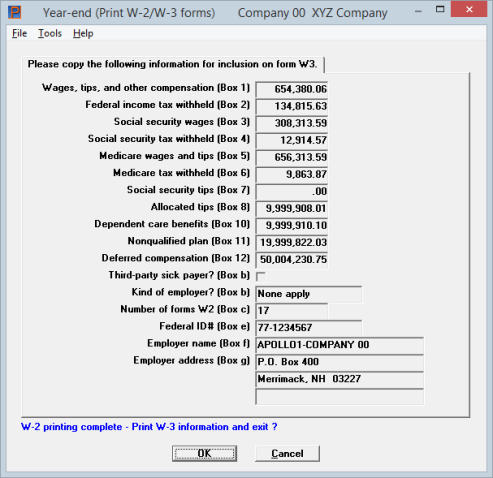
If you selected to print State information only, the Federal totals will not display and will not print on a W-3.
Select OK to print a W-3 or enter N or the Esc key to exit without printing a W-3.
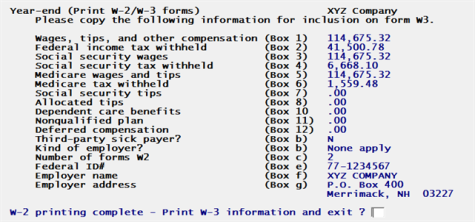
If you selected to print State information only, the Federal totals will not display and will not print on a W-3.
Enter Y to print a W-3 or enter N or the Esc key to exit without printing a W-3.
This selection writes W-2 information to an efile on your drive. It must be run in order to electronically submit a tab delimited wage efile to the Social Security Administration or your state.
You may also run this selection for creating an efile for certain states.
You must apply for online filing through the Social Security Business Services Online. Go to https://www.ssa.gov/bso/bsowelcome.htm for registration instructions. Following registration and after generating an efile with PBS you will need to run AccuWage to test the file. Go to socialsecurity.gov/employer/accuwage/ for this process. Be sure to run the test for the current reporting tax year.
If you inputted additional information for each employee it is recommended that you run and review Print W-2 information, described in Printing W-2 Information, before proceeding. It is also recommended that you review this year's pay and tax data by printing the Year-end payroll report. See Printing a Year-End Payroll Report.
Verify that the employee name and address fields are entered properly. See the Name and Address Field Notes in the Employees chapter.
You must first enter Jurisdiction ‘RA’ and ‘RE’ information before you run this selection. See the Jurisdictions chapter.
In the federal tax table, verify that the Maximum social security wages is set to the amount for the tax year that you are processing W-2s. After you are finished with year-end reporting set the amounts to the next tax year before printing the next check run. If the maximum was not set properly throughout the reporting year and you have at least one employee that reached the maximum, you will have to enter and post an adjustment for each employee that reached the maximum to make the amounts accurate. Testing the wage efile using AccuWage will find the difference.
Federal reporting is the primary function of this program. However, the generation of an efile has been provided for reporting to a few states. Contact your state for instructions on how to submit an efile. If a format has not been provided for your state you may also use Magnetic Media Formats to design your own state efile format.
The format for this file could change from year-to-year. Be sure to install the latest year-end update from Passport before running this program. If an update is not available for your version, you must upgrade to the latest version.
When running this program an efile that is generated in the Electronic_Media folder under the top-level PBS. There are folders under that folder for each tax year.
Select Magnetic W-2 forms from the Year-end menu.
The following screen displays:
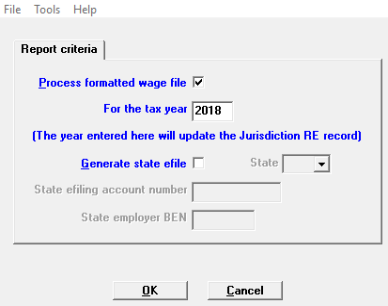
Character mode
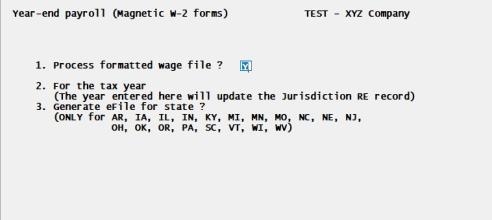
Check the box if you want to process your formatted wage file or uncheck it if you do not.
|
Format |
Graphical mode: Check box where checked is yes and unchecked is no. The default is checked Character mode: One letter, either Y or N. The default is Y |
The default year that displays is from the Jurisdictions 'RE' record Tax year field. Enter the tax year or accept the default. If you change the year, the program will write the change to Jurisdictions 'RE' record Tax year field.
The year entered should match the year in Payroll Control information. NEVER manually change the year in PR Control information. That will happen when you close the payroll year. If you find that the PR Control information year is not correct, contact your PBS provider for help.
|
Format |
CCYY (year) |
Check this box to generate a state efile.
In the State field, select a state from the drop down list - Arkansas, Iowa, Illinois, Indiana, Kentucky, Maryland, Michigan, Minnesota, Missouri, Nebraska, New Jersey, North Carolina, Ohio, Oklahoma, Oregon, Pennsylvania, South Carolina, Virginia, Vermont, Wisconsin, or West Virginia are available.
Leave the Generate state efile box unchecked to produce the file for any state not listed above. Unlisted states share the same Federal format magnetic media efile for state submission.
|
Format |
One of the two character states listed in the field below. |
Enter the state for the efile. There are different record types in an efile. An RS record is a state employee record. The federal efile does not have RS records. A state efile does have RS records and depending on the state, may have an RV state totals record.
Depending on the state regulations, specific data may be required. In some cases the file will only include employees that worked at the selected state. When running a efile for a state, the required data is generated. Contact your state for their efiling requirements.
This is a list of available states with screen data entry requirements and efile name:
|
Abbreviation |
State |
Data Entry Requirements |
File Name |
|---|---|---|---|
|
AR |
Arkansas |
State of Arkansas ID 11 digit number. |
W2REPORTxx.TXT |
|
IA |
Iowa |
Employer account number and Iowa Business Efile Number (BEN). |
W2REPORTxxIA |
|
IL |
Illinois |
No entry requirement. |
W2REPORTxxIL |
|
IN |
Indiana |
Indiana Employer Taxpayer ID and Indiana employer TID. The entry of the County is required in the employee record. Exact spelling of the county is important. |
|
|
KY |
Kentucky |
Employer account number. |
W2REPORTxxKY |
|
MI |
Michigan |
MI employer account number. |
W2REPORTxxMI |
|
MN |
Minnesota |
MN employer account number. |
W2REPORTxxMN |
| MO |
Missouri |
MO employer account number. | W2REPORTxxMO |
|
NE |
Nebraska |
State employer account number. |
W2REPORTxxNE |
|
NC |
North Carolina |
State employer account number. |
W2REPORTxxNC |
|
NJ |
New Jersey |
NJ employer account number. NJ requires Private Family Leave Insurance plan, Disability plan and Combined unemployment plan tax codes. |
W2REPORTxxNJ |
|
OH |
Ohio |
OH employer account number. |
W2REPORTxxOH |
|
OK |
Oklahoma |
Oklahoma withholding (WTH) account number. |
W2REPORTxxOK |
|
OR |
Oregon |
State employer withholding account #. |
W2REPORTxxOR |
|
PA |
Pennsylvania |
PA employer account number. |
W2REPORTxxPA |
|
SC |
South Carolina |
SC employer account number. |
W2REPORTxxSC_99 |
|
VT |
Vermont |
VT employer account number. The example provided in the Vermont Specifications for Electronic W-2 (EFW-2) Filing documentation is WHTxxxxxxxx. It also states you must enter your account ID. Check with your state contact or accountant to verify. |
W2REPORTxxVT.txt |
|
WV |
West Virginia |
WV employer account number |
W2REPORTxxWV |
|
WI |
Wisconsin |
WI employer account number. |
W2REPORTxxWI |
The xx in the file names represent the company ID. The 99 in the South Carolina file name represents the year.
XX employer account number, State of AR ID number, OK WTH account number or PA employer account number
The name of this field depends on the state being reported. Some examples are provided above. The XX in the XX employer account number name represents the state you selected. The other two field names are specific for Arkansas and Oklahoma. The state of Illinois does not require an entry in this field.
If your state requires an account number enter it here. This number is written to the appropriate places into the efile.
|
Format |
Up to 15 digits or characters. The exact number depends on the state. |
This is a Business efile Number for the state of Iowa. Enter the BEN here. This 12 digit number is written to the efile in the RS and RV records.
|
Format |
12 digits |
Make any needed change. Press <Enter> to create your formatted W-2 wage file. The Passport Business Solutions Printer selection screen displays next.
Select a printer destination for the Mag W-2 Summary/Exception Report. The data is check and if it is correct the efile is generated.
If there is a problem with the data the efile will not be generated. When the an Exception report prints you must read the report and correct the errors and run this process again. See Data Errors below.
W-2 records are written to an efile on your disk.
Data Errors
Data errors can be found by the PBS Payroll program and the Social Security's Accuwage online program.
PBS Program Error Detection If the program finds errors, the W2REPORTxx file is not produced. All errors must be corrected and this process must be run again before the program produces a file. A Magnetic W-2 Exception Report will provide the errors found.
The Social Security Administration will reject an electronic efile report if certain data conditions exist. The program checks the social security number, state code, and zip code for each employee. The program also checks to see if any of the following conditions exist:
| • | Medicare wages and tips are less than the sum of social security wages and social security tips |
| • | Social security tax is greater than zero; social security wages and social security tips are equal to zero |
| • | Medicare tax is greater than zero; Medicare wages and tips are equal to zero |
If the program finds any of the conditions above for an employee, that employee is reported on an exception report. This enables you to get the social security number, state code, or zip code for each employee who appears on this report quickly corrected. It will also allow you to enter an adjustment to handle any of the Medicare and social security inaccurate amount conditions.
AccuWage Online Program After running this selection and before submitting the file, process the file using the AccuWage online program, provided by the Social Security Administration. Go to socialsecurity.gov/employer/accuwage/ for instructions. Be sure to run the test for the current reporting tax year.
If no errors were encountered during processing a summary screen shows information on who submitted the file, who the employer is, and totals for the amounts reported. The Magnetic W-2 Exception Report is produced with no errors reported and a summary of the data.
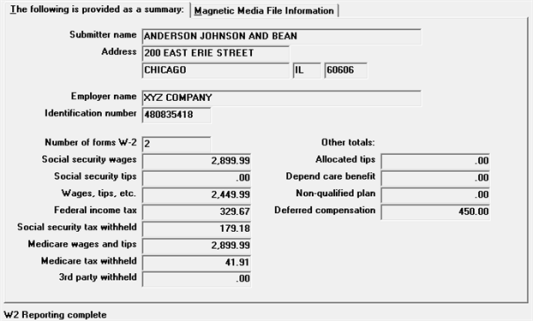
Another second tab provides the name of the file that was created. Using character mode this displays on a separate screen. Here is the graphical mode tab:
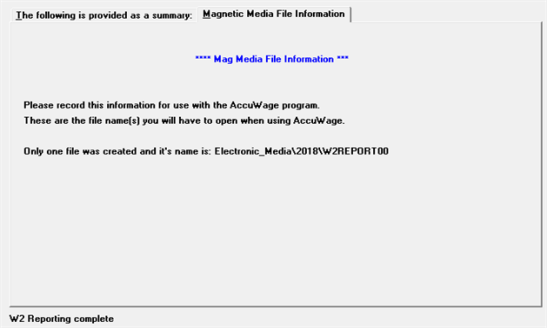
Select OK or Cancel to create the W2REPORTxx file. Using character mode press <Esc> to exit this screen. You must do this before you may access the efile.
Efile Location and Name Here is an explanation of the file location and name:
|
W2REPORTxx |
Under the top-level PBS find the Electronic_Media folder. Under that you will find folders named for some fiscal years. The efile is in the folder name of the year being reported. For example, when reporting for the year 2020 the folder name 2020.
The W2REPORT part of the file name is the same for each PBS company. The xx part of the file name matches the company ID from which the output was run.
If you created an efile for a state, the state initials will be part of the end of the file name. Example W2REPORTxxIL |
Submitting to the Social Security Administration The Social Security Administration offers Business Services Online for businesses and employees. When filing electronically you can send the complete file as is. However, before submitting, you must obtain a Transmitter Control Code in order to file. You apply for the code with a Form 4419 from the IRS. Refer to https://www.ssa.gov/bso/bsowelcome.htm page for additional information on submitting your formatted W-2 efile and when it is due. Locate and read the instructions on submitting a formatted wage file.Filing requirements may change at any time. We recommend that you contact the Social Security Administration for the up-to-date requirements prior to submitting your formatted W-2 wage efile.
AccuWage Online Efile Testing The Social Security Business Services Online provides a online program called AccuWage to test the efile. Check your wage reporting data with the AccuWage online program, provided by the Social Security Administration. Go to socialsecurity.gov/employer/accuwage/ for instructions. Be sure to run the test for the current reporting tax year. If your file is large, you may need to compress the data to a zip file before uploading. If your file is large, you may need to compress the data to a zip file before uploading.
Filing to States See the information from your state on how to register to submit the file. This information should be available online. Do not submit the file that was generated for the Federal reporting to your state as it will be missing specific information.
Resetting the Tax Deductions When you have completed the year-end tax filing, set the Maximum Social Security wages and other tax percentages for the tax year that you are writing checks. This is done in the tax tables. See Tax Tables.
The W2REPORTxx file contains:
| • | sensitive wage information about each employee. |
| • | social security numbers which could be used for identity theft. |
For this reason You may should move the file to a secure location.
This option allows you to enter 1099 information for each non-employee.
A non-employee is an employee in the sense that there is an entry for him in the Employees selection, but this entry’s Employee type code is N in character mode and Non-employee in graphical mode. Often these people are contractors or consultants whom you have chosen to pay through the Payroll system as a matter of convenience (instead of treating them as vendors, or cutting purchase orders for their services). Although non-employees are responsible for their own taxes, to prevent tax evasion the federal government requires you to report all such employees (above a certain earnings threshold, which may vary from year to year).
If you have no such employees, you can skip this section.
To enable you to effectively use the payroll system for 1099 reporting, this function allows you to record additional non-employee information in a temporary file so that it is available to the 1099 reporting functions.
The entry screen contains information entry fields that correspond to the 1099 form. Refer to the Federal reporting instructions for filling out 1099 forms for information on each of these fields.
Include 1099 Payroll Non-employees with Accounts Payable
This only applies if you have the Accounts Payable module installed. It also only applies if the vendors in Accounts Payable and non-employees in Payroll are paid by the same company using the same EIN number. If you are interested in adding Accounts Payable to your system, contact your PBS provider.
As the Accounts Payable module provides complete reporting for all 1099-MISC and 1099-NEC types, including the printing of 1099-MISC, 1099-NEC and 1096 forms, generating 1099magnetic media. You may want to add the Payroll non-employees to Accounts Payable and generate your year-end reporting there. To do this, you may enter your Payroll non-employees info A/P Vendors (Enter) and use 1099-MISC reporting info to enter override Non-employee compensation amounts for each non-employee. This data will be included when generating the 1099 year-end reporting in Accounts Payable. The data will be summarized properly on the 1096 form and in the 1099 magnetic media electronic file.
If you need to run this function, start as follows:
Select Enter 1099 information from the Year-end menu.
A screen similar to the following appears:
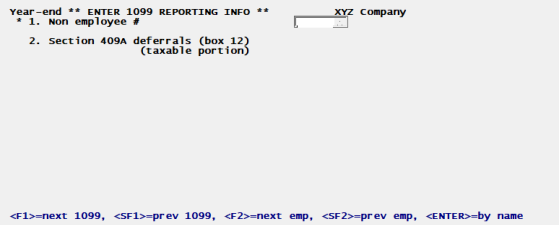
From this screen you can work with both new and existing 1099 information records. If one has already been entered for the non-employee number you specify, it displays and is available for changes or deletion.
Enter the following information.
* 1. Non-Employee #
For a new 1099 information record
Options
Enter the number of the non-employee for whom to enter 1099 information or use one of the options:
|
<F2> |
For next non-employee, in employee number sequence |
|
<SF2> |
For previous non-employee |
|
Blank |
To look up non-employee by name |
If you choose to enter by name, the cursor moves to the name field and lets you enter a non-employee name (or just the leading characters of one). Upper / lower case is significant. Your options at this point become:
|
<F2> |
For next non-employee, in employee name sequence |
|
<SF2> |
For previous non-employee |
|
Blank |
To return to looking up non-employee by number |
The non-employee entered must exist in Employees and must also have been paid at least one check during the year.
The 1099 forms cannot be printed for regular salaried or hourly employees. If you enter the number of a regular employee, an error message displays.
For an existing 1099 information record
Options
Enter the non-employee number whose 1099 information you want to change or delete, or use the option:
|
<F1> |
For next entry |
|
<SF1> |
For previous entry |
|
Format |
999999 |
|
Example |
Type 1 |
2. Section 409A deferrals (box 12) (taxable portion)
This field is for reporting the section 409A compensation plan deferral taxable amount.
Enter the dollar amount.
|
Format |
999999999.99 |
|
Example |
Press <Enter> |
Refer to the IRS publications on reporting 1099s for more information.
Field number to change ?
Options
Enter the field number for which you want to change a field or use one of the options:
|
<F3> |
To delete the entry (this is only available if the selection had previous been saved) |
|
<Enter> |
To save a new record, save the changes or retain the existing record. |
This option prints 1099 information for each non-employee.
If you have no entries in Employees with the employee type non-employee, skip this section.
If you have Accounts Payable, for a non-employee reporting alternative, see Include 1099 Payroll Non-employees with Accounts Payable.
We recommend that you run this selection and review the resulting report before producing 1099s, either as physical 1099 forms or before filing electronically.
Select Print 1099 information from the Year-end menu.
Starting employee and
Ending employee
Options
Enter the range of employee numbers for whom to print 1099 information, or use the option:
|
<F2> |
For the First or Last employee number |
|
Format |
9999 at each field |
Minimum 1099 reportable amount required
Enter the threshold amount for annual non-employee gross earnings. You are required to include on the 1099 report all non-employees who earned more than this threshold.
All non-employees are included on the report, even those below the threshold. The ones below the threshold are marked with asterisks so you can review them. They will not be included in the 1099 forms themselves (either on paper or when filing electronically).
|
Format |
99999999.99 |
|
Example |
Type 60 |
Any change ?
Answer Y to re-enter the screen, or N to print the 1099 Information Report.
If you have no entries in Employees with the employee type non-employee, skip this section.
The Print 1099 Information section explains non-employees. We recommend that you run that selection, and review the resulting report, before running this one.
If you have Accounts Payable, for a reporting alternative, see Include 1099 Payroll Non-employees with Accounts Payable.
1099s , like W-2s, can be printed as paper documents and generated as an E-file to be submitted electronically. This section deals only with paper 1099 forms. The next section describes generating an electronic file.
When printing 1099s you must use a PCL 5 compliant laser printer as set up in Company information, rather than a Windows printer. It is recommended that you do not use dot matrix pin-feed forms.
Select Print 1099 forms from the Year-end menu.
A screen displays for you to enter the following:
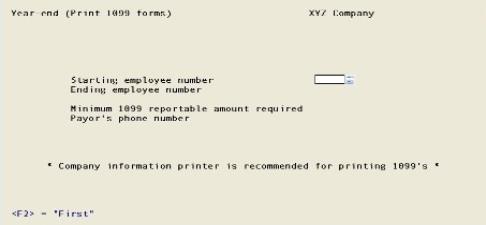
Starting employee and Ending employee
Options
Enter the range of non-employee numbers for whom to print 1099 form information, or use the option:
|
<F2> |
For First (at Starting employee) or Last (at Ending employee) employee number |
|
Format |
9999 at each field |
Minimum 1099 reportable amount required
Options
You are required to print the 1099 forms for all non-employees who earned more than this threshold. Enter the threshold amount for annual gross non-employee earnings or use the option:
|
<F2> |
For the default of $600 |
|
Format |
99999999.99 |
|
Example |
Select <F2> for default |
If no valid non-employees have a dollar amount in the "YTD Gross" field of at least the minimum reportable amount, you see "No valid non- employees on file".
Payor’s phone number
Enter a phone number where the IRS can reach you.
|
Format |
15 characters. The default is your corporate phone number from Company information. |
Print Form 1099-MISC
Copy A Copy 1 Copy B Copy 2 Copy C
These fields are intended for printing 1099-MISC form types on a laser printer. You may not have any 1099-MISC employees in Payroll as 1099-NEC employees are more common. However, if you added Section 409A amounts, using Enter 1099 information, you may print this information on a 1099-MISC form. Otherwise, disregard the printing of 1099-MISC forms.
1099s may be printed for 1099-MISC forms A, 1, B, C and 2. They are:
| • | Copy A - For Internal Revenue Service Center |
| • | Copy 1 - For State Tax Department |
| • | Copy B - For Recipient |
| • | Copy C - To be filed with recipient's state tax return when required. |
| • | Copy 2 - For Payer |
Print Form 1099-NEC
Copy A Copy 1 Copy B Copy 2 Copy C
These fields are intended for printing the different 1099-NEC form types on a laser printer. Non-employee compensation amounts are reported with these forms.
1099s may be printed for 1099-NEC forms A, 1, B, C and 2. They are:
| • | Copy A - For Internal Revenue Service Center |
| • | Copy 1 - For State Tax Department |
| • | Copy B - For Recipient |
| • | Copy C - To be filed with recipient's state tax return when required |
| • | Copy 2 - For Payer |
Select OK to print the forms or Cancel to return to the menu without printing.
If there are no non-employees who meet the threshold amount, nothing is printed and you are told No valid non-employees on file.
It is recommended that you select a Company information printer when printing 1099s.
When using a continuous feed printer, mount the 1099 forms on the printer, aligning the perforation at the top of the forms with the print head. It is important to start the actual forms from the top of the page, and to do the printing with a carbon-based black ink ribbon. The IRS requires this for their forms scanner. Adjust the printing pressure according to the thickness of the forms.
When printing 1099s you must use a PCL 5 compliant laser printer as set up in Company information, rather than a Windows printer
If you are printing to a laser printer you may print an alignment. Follow the screen instructions and print enough alignment forms to bring the paper forms to the top of a page. If you are using a laser printer, each alignment form is automatically ejected from the printer.
When the alignment is correct, and the next form to print is also the first form on the page, answer N to the alignment question and the 1099 forms print.
After the forms are printed, a summary information screen displays to show the grand totals. You can print this by using <Ctl+P> in Windows and <Ctl+F10> in Linux.
Use this section for submitting your 1099 data electronically.
If you have no entries in Employees with the employee type non-employee, skip this section.
If you have Accounts Payable, for a reporting alternative, see Include 1099 Payroll Non-employees with Accounts Payable.
Contact IRS for a Transmitter Control Code before submitting your magnetic media 1099 E-file electronically.
Magnetic media is handled a little differently for Windows vs. Linux.
1099 data is written to a disk file named IRSTAXxx (no extension), with the xx representing your PBS Company ID. You are asked for the disk drive letter of the disk to which the IRSTAXxx file is written. As social security numbers are likely to be in this file, to avoid identity theft, it is highly recommended that you store the file in a secure location.
We strongly recommend that you make three copies of this file: one to send to the IRS, another as an archive, and the third for a working copy for reference should the IRS have questions about your 1099 E-file.
Do not report 1099 forms electronically using both Payroll and Accounts Payable unless separate and distinct taxpayer identification numbers are used, one for Payroll and a different one for Accounts Payable.
1099 e-files are written automatically to your hard disk to the current directory. You are asked for the disk drive as described above only when you are running Windows.
We strongly recommend that you make three copies of this file: one to send to the IRS, another as an archive, and the third for a working copy for reference should the IRS have questions about your 1099 e-files.
Do not report 1099s electronically using both Payroll and Accounts Payable unless separate and distinct taxpayer identification numbers are used, one for Payroll and a different one for Accounts Payable.
Select Magnetic 1099 forms from the Year-end menu of the Payroll menu.
The following screen displays:
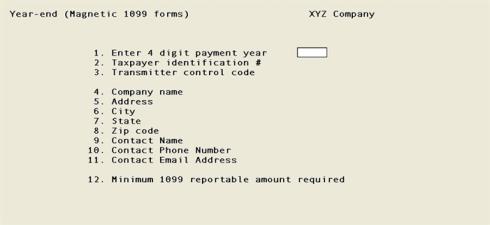
Enter the information as follows:
1. Enter 4 digits of payment year
Enter the year for which 1099 forms are being produced.
|
Format |
9999 |
2. Taxpayer identification #
Options
Enter the ID number of the taxpayer, or use the option:
|
<F2> |
For the ID number in the Federal entry of Tax tables (provided its format is valid) |
|
Format |
999999999 |
3. Transmitter control code
Enter your company’s control code. This field is required. The code is supplied to you by the IRS.
|
Format |
Five characters. All five must be present (no spaces allowed) |
4. Company name
Options
Enter the company’s name. This field is required. You may use the option:
|
<F2> |
For the company display name in Company information |
|
Format |
40 characters |
5. Address
Options
Enter the company’s address. This field is required.
|
Format |
40 characters |
6. City
Enter the company’s city. This field is required.
|
Format |
25 characters |
7. State
Enter the employer state. This is required, and must be a valid U.S. Post Office abbreviation for a state or territory. Canadian provincial abbreviations or other foreign designation are not accepted.
|
Format |
Two characters |
8. Zip code
Enter the company’s zip code. Canadian or other foreign postal codes are not permitted. It may be in two segments.
|
Format |
99999 in the first segment. This segment is required, and all five digits must be entered. 9999 in the second segment. This segment is optional, but if present all four digits must be entered. |
9. Contact name
Enter the contact name.
|
Format |
Up to 40 characters |
10. Contact phone number
Enter the contact phone number.
The phone number is four separate fields. They include area code, exchange, number and extension.
|
Format |
Area code - three digits Exchange - three digits Number - four digits Extension - five optional digits. The extension is optional |
11. Contact email address
Enter the senders email address. This field is optional, but recommended if there is one available.
|
Format |
Up to 50 characters |
12. Minimum 1099 reportable amount required
You are required to create 1099 magnetic media for all non-employees who earned more than this threshold. Enter the threshold amount for annual gross non-employee earnings or use the option:
|
<F2> |
For the default of $600 |
|
Format |
99999999.99 |
|
Example |
Select <F2> for default |
Field number to change ?
Make any needed changes. Press <Enter> to create the file.
You are asked for the printer on which the Magnetic 1099 Exception Report is to be printed. This is an audit trail report and may not be directed to the monitor, but may be spooled to disk.
The 1099 e-files are then written to the Electronic_Media folder. The screen displays the number of the payees whose 1099 forms are being written to disk.
While Processing Is Occurring
As 1099 forms are written to disk, the program checks the taxpayer identification number (TIN), state code, and zip code for each payee getting a 1099. If the program finds an error, the information for that payee is reported on an exception report. This enables you to get the TIN, state code, or zip code for each payee who appears on this report quickly corrected.
If the program finds any errors, the IRSTAXxx file, containing your 1099 reports, is not produced. All errors must be corrected before the program produces this file.
Under Windows
If you selected a hard disk, enter DONE at this point.
Using a Unix or Linux Server
You will not be asked for a drive letter when creating the file.
For all operating systems
After IRSTAXxx has been created, a summary information screen displays to show the grand totals. The same information prints on the exception report.
This screen may be printed in Windows by selecting <Ctl+P> and then select a Windows printer.
In Linux select <Shift+F10> to print the screen to the first printer entered in Company information.
As social security numbers are likely to be in this file, to avoid identity theft, it is highly recommended that you store the file in a secure location.